
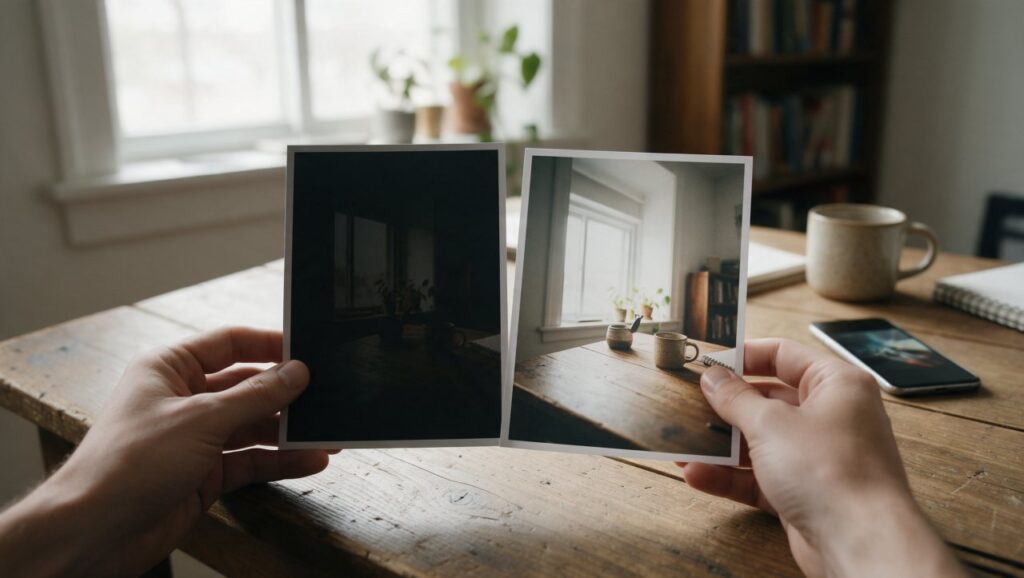
You finally got the shot. The birthday candles are lit, the room goes dark for a second, and you tap the shutter. Later, you open your camera roll and find a muddy, gray mess. The faces are there, but everything is buried in shadow. You try the brightness slider and suddenly the photo looks washed out, grainy, and fake. The detail you wanted to save seems to disappear the moment you lift the shadows.
Brightening a dark photo is not just about dragging a slider to the right. It is about protecting the texture in the highlights, controlling noise, and keeping skin tones looking natural. On a phone, you can do this with the right order of edits and a few free or cheap apps. This guide walks through the exact steps, the common traps, and the tools that make it easier.
Start With the Right File, Not Just the Brightest Screen
Before you touch any editing app, check what you are working with. If your phone camera has a night mode, use it when you take the shot. Night mode captures several short exposures and merges them, which gives the editing app more information to work with later. A photo taken with night mode will brighten much more cleanly than a standard photo taken in the same dark room.
If you already have a dark photo, the file type matters. Most phones save photos as HEIC or JPEG. Both are compressed formats, which means some detail is already gone. If your camera app lets you save a RAW or ProRAW file, use that for difficult low light scenes. RAW files keep far more shadow detail, so when you lift the shadows in an editing app, you get texture instead of gray smudges. Apps like Snapseed and Adobe Lightroom Mobile can open and edit RAW files on a phone.
The screen brightness on your phone also affects your edits. If your screen is dim, you will overbrighten the photo. Set your display brightness to at least seventy percent before you start, and if your phone has True Tone or Eye Comfort mode, turn it off temporarily. Otherwise the warm screen tint will make you add too much blue or too much brightness to compensate.
Use the Shadows Tool Before the Brightness Tool
The biggest mistake people make is reaching for brightness first. Brightness changes every pixel in the photo equally. That means the already bright parts, like a lamp or a window, get blown out while the dark parts barely improve. Instead, open your editing app and look for the shadows slider. Shadows only lifts the darker areas of the image and leaves the highlights mostly alone.
In Snapseed, tap Tools, then Tune Image, and you will see Shadows as a separate option. In Lightroom Mobile, the Light panel has a Shadows slider alongside Exposure and Highlights. In the built in Photos app on iPhone, go to Edit, tap the dial icon, and swipe through the options until you see Shadows. On many Android phones, the Google Photos editor has a similar control under Adjust.
A good workflow is to lift shadows first until you can see the main subject clearly. Then, if the whole image still feels too dark, add a small amount of exposure or brightness. This order protects the bright areas. For example, if you have a photo of a person standing near a window, lifting shadows will reveal their face without turning the window into a white rectangle. If you had used brightness first, the window would be gone before the face looked right.
Control Highlights to Keep Lamps and Windows Looking Real
Once you lift shadows, you may notice that light sources in the photo start to look harsh. A lamp shade, a candle flame, or a patch of sky can become a glowing blob. That is where the highlights slider helps. Dragging highlights down darkens only the brightest parts of the image, which brings back texture in those areas.
Use highlights gently. If you lower them too much, white objects turn gray and the photo looks flat. A good approach is to lower highlights until you can see a little detail in the brightest area, then stop. For a candle photo, that might mean you can see the shape of the flame and the wax around it instead of one white streak. For a window, you might see the frame and a hint of the outdoors rather than a solid white square.
Some apps also have a whites and blacks tool. Whites are the brightest points, and blacks are the deepest shadows. If your photo still looks hazy after adjusting shadows and highlights, try lowering blacks by a tiny amount to add contrast back. This works well on photos taken indoors at night, where lifting shadows can make the whole image look milky. A small black point adjustment brings back a sense of depth without making the photo dark again.
Watch for Noise and Use Denoise Sparingly
Dark photos hide a lot of noise, which is that grainy texture you see when you brighten a photo too much. Noise appears because the camera sensor did not get enough light, so it had to guess at some of the colors and details. When you lift shadows, you are amplifying that guesswork. Some noise is fine, especially if you are going to post the photo on social media where it will be small. But if you want to print or crop the photo, you need to reduce it.
Most phone editing apps have a denoise or noise reduction tool. In Lightroom Mobile, it is under Detail. Snapseed has no dedicated noise reduction tool, only Structure and Sharpening under Details, so keep your shadow lifts moderate there. Be careful with denoise. Strong noise reduction removes grain by blurring fine details, so faces can start to look waxy and hair can look like a helmet. The goal is to reduce noise, not eliminate it.
A better first step is to avoid adding noise in the first place. Lift shadows only as much as you need. If you lift shadows by one hundred percent, you will see a lot of grain. If you lift them by forty percent and then add a little exposure, the result may be cleaner. Also, sharpening after brightening can make noise worse. If you must sharpen, use a low amount and apply it only to the main subject if your app supports masking, like Lightroom Mobile does.
Fix Color Casts After Brightening
Brightening a dark photo often changes the colors. Indoor photos taken under warm lamps can turn orange when you lift the shadows. Night photos can turn blue or green. Before you call the photo done, check the color balance. Look at skin tones first. If a person looks too orange or too gray, the white balance is off.
In most apps, the white balance tool has two sliders: temperature and tint. Temperature moves from blue to yellow. Tint moves from green to magenta. If the photo looks too warm, move the temperature slightly toward blue. If it looks too green, move the tint slightly toward magenta. Make small changes. A shift of five or ten points is often enough.
Some apps, like Lightroom Mobile and Snapseed, have an auto white balance button. It can be a good starting point, but it is not always right for night photos. Auto white balance may try to neutralize a warm candlelit scene, which removes the cozy feeling you wanted to keep. In that case, set the white balance manually and trust your eyes. If the scene was warm in real life, a slightly warm photo is accurate, not wrong.
Use Selective Edits for Faces and Backgrounds
A global edit changes the whole photo at once. Sometimes that is not enough. A face in the foreground may need more brightening than the background, or a dark corner may need a lift while the center stays the same. Selective edits let you apply changes to only part of the image, which is perfect for tricky low light photos.
Snapseed has a Selective tool that lets you tap a spot and adjust brightness, contrast, saturation, and structure in a small radius around that spot. Lightroom Mobile has masking tools, including a brush and a radial gradient. The brush is useful for painting brightness onto a face or a dark object. The radial gradient is great for brightening a subject while keeping the background moody.
For example, imagine a photo of a friend at a campfire. The fire is bright and the friend’s face is dark. A global shadow lift would make the fire look unnatural. Instead, use a selective edit on the face only. Raise the brightness and shadows a little, add a touch of warmth, and leave the fire alone. The photo keeps its nighttime feel, but the person is visible.
Compare Before and After Often
When you edit a dark photo for more than a minute, your eyes adjust to the new brightness and you lose perspective. The photo may look too bright, too flat, or too noisy and you will not notice because you have been staring at it. That is why almost every good editing app has a way to see the original image quickly.
Most editors have a way to see the original quickly, usually a compare button or a tap or press and hold on the image, and the exact gesture differs by app. Look for it in Snapseed, Lightroom Mobile, the iPhone Photos app, and Google Photos. Use it constantly. After every major adjustment, check the original, then go back to your edit.
When you compare, ask yourself three questions. Is the subject clearly visible? Do the bright areas still have some detail? Does the photo still look like the moment you remember? If the answer to any of these is no, step back one or two adjustments. Often the best edit is the one that looks natural, not the one that shows off how much you fixed.
Save a Copy, Never Overwrite the Original
It is tempting to hit save and replace the dark original with your brightened version. Resist that. Keep the original file. You may want to try a different edit later, or you may learn a new technique that works better. Once you overwrite the original, you cannot go back. Most apps let you save a copy or export a new file, and some, like Lightroom Mobile, are non destructive, meaning your edits are saved separately and you can change them anytime.
If you are using the built in Photos app on iPhone, use the Revert option if you ever want to start over. On Android, Google Photos keeps the original unless you choose to save a copy. Either way, develop the habit of exporting a new version instead of flattening the old one. Storage is cheap, but lost originals are gone forever.
Also think about where the photo will live. A photo for Instagram can be a little noisier and brighter because it will be small. A photo for a print or a family album should be more conservative. If you keep the original, you can make a social version and a print version from the same starting point without losing anything.
Try a Second App for the Final Polish
No single app does everything perfectly. A common workflow is to do the heavy lifting in one app, then move to another for the finishing touches. For example, you might use Snapseed to lift shadows, control highlights, and reduce noise. Then you might open the photo in VSCO or Lightroom Mobile to adjust the color grade and add a subtle preset. Or you might use the built in Photos app for a quick fix and then use Google Photos for a final crop and pop of color.
The order matters. Do the technical fixes first: shadows, highlights, white balance, noise. Then do the creative edits: color grading, vignette, grain, or filters. If you add a filter first, the technical fixes will fight against the filter and the result will look overprocessed. Start clean, then style.
When you move between apps, export at full quality. Avoid saving a photo, reopening it, saving again, and repeating too many times. Each save as a JPEG adds a little compression. Two or three saves is fine. Ten saves will start to soften the image. If your app can export a lossless PNG for intermediate steps, use that, then export the final version as JPEG.
Quick Checklist for Brighter, Cleaner Photos
Before you close the editing app, run through this list. It catches the most common mistakes and makes sure the photo looks good on any screen.
- Lift shadows first, not brightness, to protect bright areas.
- Lower highlights only until light sources show a little texture.
- Check skin tones for orange, green, or gray casts.
- Zoom in to check for heavy noise or waxy skin from denoise.
- Toggle between before and after to confirm the edit looks natural.
- Make sure the main subject is brighter than the background, not equal to it.
- Export a copy and keep the original file untouched.
- View the photo at the size it will be used, not just full screen.
If the photo still does not look right, step away for a few minutes. Come back with fresh eyes. You will see immediately whether the brightness feels natural or forced. The goal is not to make night look like day. The goal is to make a dark photo look like the moment you actually saw, with the detail and mood intact.





