
Maybe you finished a batch of candles that smell incredible but every photo looks like a dark yellow rectangle. Or you have a table full of refurbished sneakers and the listings keep getting ignored. Product photos at home often fail because the light is wrong, the background is busy, and the phone is doing too much automatic work.
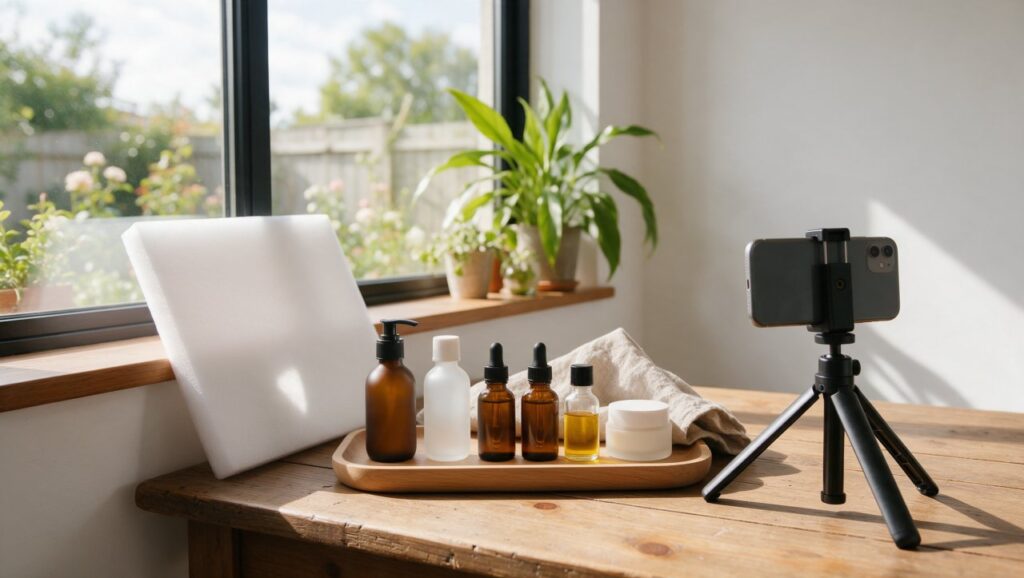
The fix is simpler than it sounds. You can build a small, repeatable setup with a window, a piece of poster board, and a few careful editing passes on your phone. The goal is not a studio look. The goal is a clean, clear photo that makes the product easy to see and trust.
1. Start with a window, not a lamp
Your best light source is already in your home. Place the product within a few feet of a large window, preferably one that does not get direct sun beating through. Direct sun creates hard shadows and bright hot spots. On an overcast day, open window light is naturally soft and even. On a sunny day, hang a thin white curtain, a bed sheet, or a piece of parchment paper over the window to soften it.
For example, if you are shooting a white ceramic mug, put it on a small table beside a north-facing window. If the shadows are too strong on one side, set a white foam board or a sheet of white poster board opposite the window. That bounce light fills the dark side without adding another lamp. A simple test is to take one photo without the white board and one with it. The second photo usually shows more detail in the shadow area.
Common mistakes
- Mixing window light with a warm table lamp, which creates a yellow or orange side.
- Placing the product so close to the window that part of it blows out to pure white.
- Shooting in a room with colored walls, which can reflect green, pink, or blue onto the product.
If you only have one small window, move the product closer to it and lower the exposure slider a little before you shoot so the bright areas keep their detail. You can also work near the window in the morning or late afternoon for softer light. Start with one window and repeat the same setup until the images look consistent.
2. Set exposure and white balance before you shoot
Phones make automatic choices that can ruin product photos. The camera may darken a white background until it looks gray, or warm up a silver necklace until it looks gold. Before you take ten photos, take control of exposure and white balance.
On most phones, tap the product on the screen to focus. A small sun or brightness slider appears next to the focus box. Slide it up if the product is too dark, down if it is too bright. The key is to keep the product correctly exposed. A background can be slightly bright or soft, but the product should show texture and true color.
How to set white balance in a phone app
- Take a test photo that includes a plain white sheet of paper near the product.
- Open the photo in an editing app such as Snapseed or Photoshop Express.
- Choose the white balance or color tool.
- Use the white balance picker on the white paper, or move the temperature slider toward blue if the photo looks yellow.
- Compare the paper in the photo to the paper in real life. When they look close, the product color is usually close too.
A common mistake is to judge color on a phone screen with night mode or a too-bright display. Turn off blue light filters and set your screen brightness to about half before editing. If you sell clothes or dyed goods, this small step can prevent returns caused by color surprises.
3. Build a small light control kit from household items
You do not need softboxes or ring lights. The most useful tools are flat things that bounce, block, or soften light. White foam board, white cardboard, aluminum foil, black poster board, parchment paper, and plain printer paper can handle most small product setups.
Use white board or paper to bounce light into shadows. Use black board to subtract light and add gentle contrast. Use parchment paper or a white trash bag clamped to a chair to diffuse a harsh window. If you need a little extra fill, bounce the built-in phone flashlight off a white wall instead of pointing it at the product.
A simple kit for under a desk
- Two sheets of white foam board or cardboard
- One sheet of black poster board
- One roll of parchment paper or tracing paper
- A few clothespins and heavy books to hold things in place
For a shiny object like a watch or lipstick tube, try a black card placed to the side that shows up as a clean dark reflection. That can help define the edge more than a white card. Compare the same object with all white cards around it and then one black card. The second photo often looks less washed out.
The mistake to avoid is adding too many bounce cards and making everything flat. One white board opposite the window is usually enough. Take a test shot and move it closer or farther before adding more.
4. Choose a plain background you can repeat
A busy background steals attention. It also makes two products from the same brand look unrelated. Pick a background that is simple, clean, and easy to recreate in later sessions. Common options include poster board, butcher paper, fabric with no pattern, a smooth tabletop, textured concrete, or a clean cutting board.
For example, a pair of white sneakers reads better on warm gray poster board than on a patterned rug. A small jar of body butter looks cleaner on a white sweep of paper with a soft shadow than on a kitchen counter with crumbs and a sponge in the corner.
Good starter backgrounds
- White or off-white poster paper for light, airy listings
- Kraft paper or light brown cardboard for a natural feel
- Slate gray or charcoal paper for lighter products that need contrast
- A neutral linen or cotton fabric pulled tight
To make a sweep, tape one edge of the paper to a box or wall and let it curve down to the table. Do not fold it. A fold creates a line that catches shadows. The curve gives a clean, corner-free background behind and under the product.
Avoid reflective surfaces if you are not ready to control reflections. A glossy white table can bounce light unevenly and show fingerprints. Matte paper and matte boards are easier to use.
5. Clean the lens and hold the phone steady
A phone rides in a pocket or bag all day. Fingerprints, dust, and oily film quietly blur your product photos. Before you set up anything, wipe the lens with a dry microfiber cloth or a soft cotton shirt. Do not use a rough paper towel. Compare a photo before and after cleaning and you will see the haze disappear.
Sharpness also depends on holding the phone still. The phone may look stable in your hands, but at slower shutter speeds in indoor light, tiny movements soften details. Lean your elbows on a table, rest the phone against a stack of books, or use a small phone tripod. A tripod also helps you keep the same angle across many products.
Ways to avoid camera shake
- Put the phone on a small tripod or clamp mount.
- Rest your arms on a chair, table, or bag of rice.
- Use the self-timer or the volume button instead of tapping the shutter.
- Switch from 1x to 2x only if your phone has an optical telephoto lens.
Do not use digital zoom. Digital zoom crops into the sensor and reduces quality. Move the phone or the product closer instead. For tiny items, use the phone’s macro mode only if it has one, or shoot from a short distance and crop later in the editing app.
6. Shoot three angles that answer buyer questions
One photo rarely tells the whole story. Buyers want to understand size, shape, texture, and details before they click purchase. You can cover most of that with three angles: a top-down view, an eye-level view, and a 45-degree view.
A top-down or flat lay works well for flat products and sets. Shoot from directly above, keeping the phone parallel to the table. This angle shows the shape of a wallet, the layout of a gift set, or the top of a candle. Eye level is where the phone sits at the same height as the product. It works for showing the front of a bottle, the side of a shoe, or the handle of a mug. A 45-degree angle gives depth and shows more surfaces at once. This is often the natural main shot.
Quick angle checklist
- Overhead: top shape, pattern, or flat lay
- Eye level: front label, main face, or silhouette
- 45 degrees: depth, size, and context
- Detail: texture, stitching, or ingredient list
Keep the phone level. Slight tilt in an overhead shot turns circles into ovals and makes straight edges look warped. Use a phone level overlay if your camera app has one, or compare the edges of the frame with the table lines. If you are photographing a box, the nearest edge should look straight, not bowed.
7. Edit in this order: crop, exposure, color, retouch
Editing apps are not cheating. They are where you remove small color casts and make a photo match what your eye saw in person. The order matters because each step affects the next. Start with crop and straighten, then fix the overall exposure, then correct color, and only then remove spots and dust.
Crop first to the shape your store or feed needs. A square 1:1 crop is common for many marketplaces, while 4:5 works well for portrait product shots. Straighten the horizon or table line before touching brightness. A crooked background draws more attention than a slight color cast.
In an app like Snapseed or Photoshop Express, use the Tune Image, Brightness, Shadows, Highlights, and White Balance sliders in that rough order. Raise shadows a little to show detail, but do not make the photo look like an HDR painting. Lower highlights if a white label has lost its texture.
Slider order that works
- Crop and straighten
- Brightness or exposure
- Shadows and highlights
- White balance or temperature
- Saturation only if colors look dull
- Sharpening last if needed
Keep saturation under control. A red shirt photographed near a window may already be vivid enough. Adding saturation can change the color buyers see when the package arrives.
8. Remove dust, crumbs, and stray threads with healing tools
Small debris looks ten times worse in a close-up. A single crumb next to a plate, a hair on a blanket, or a speck of dust on a lens can become the first thing people notice. The healing or clone tools in mobile editing apps are good at removing those small distractions.
Zoom in before you start. In Snapseed, the Healing tool lets you tap or brush over a spot and replaces it with nearby pixels. In Photoshop Express, the Healing or Blemish tool works similarly. For a straight thread or scratch, use small strokes instead of one long swipe. Long swipes may smear texture or leave a soft line.
What to remove
- Dust, crumbs, pet hair, and lint
- Small scratches or scuffs on the product
- Reflections of your hand or phone
- Fold lines or tiny marks on the background
Do not remove texture that describes the product. A leather wallet, a wooden spoon, or fabric weave should keep some natural grain. Over-smoothing makes products look plastic. If you are not sure, zoom out and check the photo at normal size. If you can see a blurry patch, undo and use a smaller brush.
9. Keep colors consistent across a product line
When a buyer visits your page and sees ten products, the photos should feel like they belong together. Consistency does not mean every photo must look identical. It means the background, light direction, and color tone are close enough that nothing looks like a different seller or a different day.
Use the same window, background, distance, and edit settings for each product in a line. Save your editing steps as a preset or copy adjustments from one photo to the next if your app supports it. Snapseed can save a set of edits as a Look to reuse on other photos, and Lightroom’s mobile app can copy settings from one photo to another. Check what your own app offers. If it can’t, do the same manual steps in the same order.
Consistency checklist
- Shoot at the same time of day when possible
- Use the same background and product distance
- Place a white card in one scene to check neutral color
- Copy or repeat the same edit settings
- Review all photos side by side before posting
A common mistake is changing the background for every product. It feels creative, but the page becomes noisy. Another mistake is relying on auto white balance across different days. One day the background looks white, the next day blue. A quick white balance check with a sheet of paper fixes that before you edit.
Apps like Canva can help you place finished product photos onto a consistent canvas or grid if you need social media layouts. Do the photo correction first, then bring a clean image into the layout.
Quick pre-post checklist
Before you upload, run through these checks in order. They catch the problems that are easy to miss when you have been staring at a photo for twenty minutes.
- Lens was wiped with a soft cloth before shooting.
- Product is in focus and the main surface shows texture, not blur.
- Background is free of wrinkles, dust, crumbs, and stray objects.
- Colors match the real product. Check a white or gray area for color casts.
- Shadows look soft and intentional, not heavy or orange.
- No unwanted reflections, fingerprints, or your phone’s shadow in the frame.
- Crop is set to square or 4:5 if needed, and nothing important is cut off.
- Exported at the highest quality or resolution available in your app.
- The photo looks clear at thumb size and at full screen.
- It matches the other products in your line well enough to sit side by side.
If one of these fails, go back only to the step that fixes it. You do not need to redo the whole shoot. The difference between an ignored listing and a click is often just a cleaner background, a steadier shot, and a few careful edits.





