
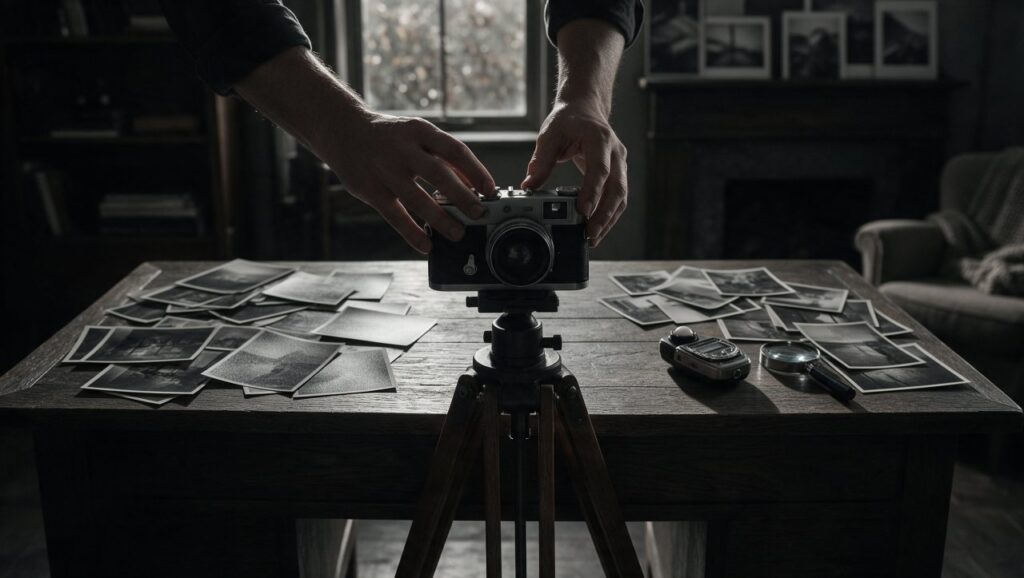
You snapped what felt like the perfect shot on your phone. The light hit just right, the moment was real, but once you see it on the screen it feels flat. You try a quick black and white filter and suddenly the photo has a mood, a shape, a story. That is the pull of monochrome. It removes the noise of color and asks you to focus on what is actually happening in the frame.
Most people stop at the first filter they find, but there is a big difference between a washed-out gray image and a black and white photo that makes someone stop scrolling. This guide is for phone users who want to get that second kind of result. You do not need a photography degree. You just need to know what to look for and which mobile tools help you get there.
Start With the Right Kind of Photo
Black and white does not save a bad photo, but it can transform a good one that feels too busy. The best candidates are images with strong contrast, clear light, and a subject that does not rely on color to make sense. Think of a person standing near a window, a street with long shadows, or a close-up of hands holding a coffee cup. These scenes work because the shapes and tones carry the image.
A common mistake is converting a sunset photo to black and white. Without the orange and pink sky, you are left with a dull gray horizon. The same goes for food photos where the appeal is the bright red of a tomato or the green of fresh herbs. If color is the main event, leave it in color.
Before you open any editing app, ask yourself what you want people to notice. In a portrait, you probably want the eyes to stand out. In a street scene, maybe it is the geometry of a building or the contrast between a bright sidewalk and a dark coat. When you know the answer, the rest of the editing process becomes much easier.
Shoot With Monochrome in Mind
You can convert any photo later, but you will get better results if you look for black and white opportunities while shooting. Most phone cameras let you switch to a monochrome or noir mode in the native camera app. That is useful for previewing the scene, but a better habit is to shoot in color and convert later. Color files hold more information, which gives you more control over how each tone turns into gray.
Pay attention to light direction. Side light creates texture and depth, which reads beautifully in black and white. Harsh midday sun can be tricky for color photos, but in monochrome it creates bold shadows and bright highlights. Overcast days are also great because the soft light gives you a full range of grays without harsh blowouts.
Look for repeating patterns, strong lines, and negative space. A person walking past a white wall, a row of bicycles, or a shadow cast across a staircase can all become more interesting when color is removed. The phone screen is small, so simple compositions usually work best.
Choose Your Conversion Tool Wisely
The built-in black and white filter in your phone’s photo app is a fine starting point, but dedicated editing apps give you much more control. Snapseed, made by Google, is a solid free option for both iPhone and Android. Its black and white tool lets you adjust brightness, contrast, and grain, and you can apply selective edits to specific parts of the image.
Lightroom mobile from Adobe is another strong choice. The free version includes a black and white profile and the ability to adjust individual color channels. That matters more than you might think. When you lighten the blue channel, a sky becomes brighter. When you darken the red channel, skin tones get deeper and more dramatic. These small shifts change the whole feel of the photo.
VSCO is popular for a reason. Its black and white presets, often labeled like B1, B5, or similar, have a film-like quality that many people love. You can start with a preset and then dial back the strength or tweak contrast and fade. Plans and limits change, so check what is currently free before you commit.
Use the Color Channels Instead of a Plain Filter
This is the step most phone users skip, and it is the one that separates flat gray photos from rich monochrome images. When an app gives you a black and white mix panel or individual color sliders, use them. A plain desaturation removes color evenly, but a channel mixer lets you decide how bright or dark each original color becomes.
For example, imagine a portrait with a blue sky in the background. If you lower the blue slider, the sky turns dark and moody, which makes the person’s face pop. If you raise the blue slider, the sky becomes almost white and airy. The same photo can feel completely different based on that one adjustment.
In Snapseed, the black and white tool has a filter icon that lets you pick red, orange, yellow, green, or blue filters, which work like the channel sliders. In Lightroom mobile, the color mix panel works the same way. Try moving the orange and red sliders for skin tones, the green slider for foliage, and the blue slider for skies. Small changes of ten or fifteen points are often enough.
Get the Contrast Right Without Going Too Far
Contrast is the backbone of a strong black and white photo. It gives the image structure and keeps it from looking muddy. But there is a fine line between punchy and harsh. If you push contrast too high, you lose detail in the shadows and highlights. A black jacket becomes a solid blob, and a bright forehead becomes a white patch with no texture.
A better approach is to set a moderate global contrast first, then use shadows and highlights sliders to recover detail where needed. If the face is too dark, lift the shadows a little. If the sky is too bright, pull the highlights down. This gives you a full range of tones from deep black to clean white while keeping the midtones smooth.
Compare your edit to the original every so often. Most apps have a press-and-hold preview or a before and after toggle. If the edited version looks dramatically worse in the skin tones, back off. Black and white should feel intentional, not like a heavy Instagram filter from ten years ago.
Add Grain for Texture, Not Noise
Phone photos can look too clean, especially in black and white. A small amount of grain can add a tactile, film-like quality that makes the image feel more human. The key word is small. Too much grain looks like a noisy low-light shot, not a creative choice.
In Snapseed, the grain tool inside the black and white filter has a slider that goes from zero to one hundred. A value around twenty to thirty is usually enough for a subtle texture. In VSCO, the grain slider works independently from the preset, so you can add it after you finish your other edits.
Grain works especially well on portraits, old buildings, and street scenes. It can soften the harshness of digital sharpness and give the photo a timeless feel. If you are editing a product shot or something meant to look sleek and modern, skip the grain entirely.
Use Vignettes and Selective Edits Sparingly
A vignette darkens the edges of the frame and draws the eye toward the center. It can be a lovely finishing touch, but it is also one of the easiest effects to overuse. A heavy vignette makes a photo look like it was shot through a tunnel and can distract from the subject.
Instead of darkening all four corners evenly, try using a selective edit tool. Snapseed has a selective adjustment feature that lets you place a control point on the image and adjust brightness, contrast, or saturation in that area only. You can brighten a face, darken a bright window, or add contrast to a specific texture without affecting the whole photo.
Lightroom mobile has a similar masking feature. You can use a radial mask to create a gentle vignette around your subject, or a linear mask to darken a distracting sky. These targeted edits feel more natural than slapping a filter over the entire frame.
Fix Common Black and White Mistakes
One frequent mistake is leaving the photo too gray. A black and white image needs some true blacks and some clean whites to feel complete. If everything sits in the middle gray range, the photo looks flat and unfinished. Check your histogram if your app has one. A healthy monochrome image usually has tones spread across the whole range.
Another mistake is ignoring the background. Color photos can get away with a busy background because the colors separate the subject. In black and white, a busy background merges with the subject and creates visual confusion. Before you convert, look at the edges of the frame. If there is a pole growing out of someone’s head or a bright sign pulling attention, crop it out or darken it.
Finally, do not rely on a single app for everything. You might prefer the black and white conversion in Lightroom, the healing tool in Snapseed, and the grain in VSCO. That is fine. Edit in stages and save a copy before moving to the next app. Just keep the original file safe so you can start over if needed.
Create a Consistent Look for a Series
If you plan to post several black and white photos together, consistency matters. A set of images with wildly different contrast, grain, and brightness looks chaotic. A series with a similar tonal range feels like a deliberate collection.
The easiest way to do this is to edit one photo until you love it, then note the settings. Write down the contrast level, shadow and highlight adjustments, grain amount, and any color channel changes. Apply those same numbers to the next photo and adjust only as needed for different lighting conditions.
Some apps let you copy edits from one photo and paste them onto another. Lightroom mobile has this feature, and it can save a lot of time. Create your own preset, apply it to the rest of the series, then fine-tune each image. This is how you build a recognizable style without spending hours on every single photo.
Quick Checklist Before You Share
Before you post or save your final black and white photo, run through this short list. It takes less than a minute and catches most of the issues that make monochrome images look unfinished.
- Is there a true black and a true white somewhere in the frame, or at least close to it?
- Did you adjust the color channels, or did you just desaturate the image?
- Are the skin tones smooth and natural, without looking gray or sickly?
- Is the background clean and free of distracting bright spots or clutter?
- Did you add grain on purpose, or is it just digital noise from low light?
- Does the contrast feel strong but not so high that details are lost?
- Did you check the edges of the frame for objects that should be cropped out?
- Does the photo still look good at the small size it will appear on a phone screen?
If you can answer yes to most of these, you are ready to share. Black and white photography is not about having the most expensive gear or the rarest app. It is about seeing light, shape, and emotion clearly. With a little practice and the right mobile tools, your photos can stand out for all the right reasons.





