
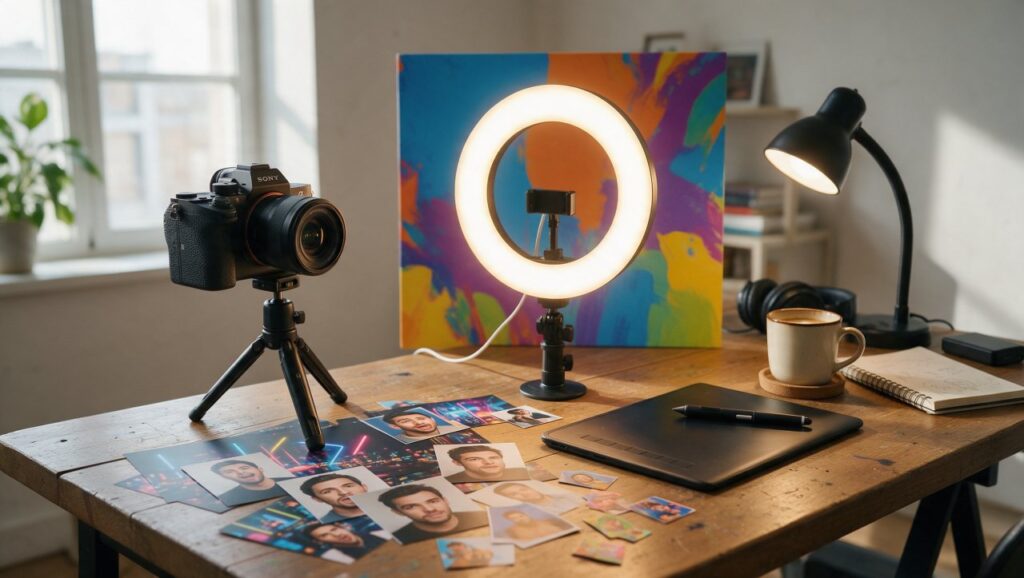
The last video you posted took an hour to edit, but the thumbnail took thirty seconds. You grabbed a blurry frame, slapped some text on it, and moved on. Then you watched a smaller channel in your niche get three times the views with a photo that looked cleaner than your actual video. That stings, but it is also the easiest problem to fix.
Thumbnails are not about being a professional designer. They are about stopping a thumb mid-scroll. On a phone screen, where most people discover content, that means high contrast, one clear idea, and a face or object that reads at the size of a postage stamp. This guide will show you how to make thumbnails that get clicks using only your phone, a few free or affordable apps, and a repeatable process.
Start With the Right Photo, Not the Perfect App
Most bad thumbnails start with a bad source image. If the photo is dark, cluttered, or awkwardly cropped, no amount of filters will save it. Before you open any editor, think about what the thumbnail needs to communicate. For a cooking video, that might be a close-up of melted cheese pulling away from a slice. For a tech review, it could be you holding the product with a surprised expression. The subject should fill at least half the frame.
Shoot in bright, even light. Natural light from a window works great and costs nothing. Avoid overhead lamps that cast harsh shadows across your face. If you are filming video, take a separate photo for the thumbnail instead of pulling a frame from the recording. Video frames often have motion blur. A still photo taken with your phone camera will be sharper.
Here is a quick test before you edit: zoom out on the photo until it is about the size of a thumbnail in your gallery. Can you still tell what the video is about? If not, crop closer. If the background is busy, move to a plain wall or use a shallow depth of field. Portrait mode on most phones can blur the background behind a face or product, which instantly makes the subject pop.
Common mistake: trying to show too much. A thumbnail with five elements competes with every other thumbnail in the feed. One strong subject, one short phrase, and a simple background is almost always enough.
Use Phone Apps That Focus on Layers
The biggest difference between a random photo and a clickable thumbnail is control. You need to place text, adjust the subject, and change the background independently. That is why apps with layers are worth learning. Layers let you move text without affecting the photo, or brighten the background without washing out your face.
On iPhone and Android, Picsart is a long-established app that offers layers, cutouts, and text tools. Canva, available as a mobile app, is also a solid choice for creating thumbnails from templates or a blank canvas. Adobe Express, the simplified mobile sibling of Adobe’s design tools, gives you access to basic layers, fonts, and background removal. These three apps work well on a phone, though some features sit behind paid plans.
Start with a blank canvas in the same aspect ratio as your platform. For YouTube, that is 16:9. For many social feeds, a square or 4:5 ratio works better. Import your photo as the bottom layer. Then add text as a separate layer on top. If the text is hard to read, do not just change the color. Add a semi-transparent shape behind it or use a thick outline.
Layer workflow for a typical thumbnail:
- Open a blank 16:9 canvas.
- Add your photo and crop it so the subject sits to one side.
- Use the background remover to cut out the subject if you want a solid color behind it.
- Add a colored rectangle behind the subject.
- Add text on top, using the largest readable size.
- Export at the highest quality available.
Working with layers feels slower at first, but it prevents the most common thumbnail disaster: text that disappears into a busy photo. Once you get used to it, the whole process takes less than ten minutes.
Make Faces Big and Expressions Clear
People click on faces. More specifically, people click on faces that show a clear emotion. A neutral expression does not promise anything. A shocked face, a laughing face, or a skeptical face tells the viewer what kind of reaction the video will give them. This works even if you are not a video creator. Thumbnails for product photos, podcast clips, and design tutorials all benefit from a human expression.
When you shoot a thumbnail photo, do not just smile at the camera like a passport photo. Act out the emotion you want the viewer to feel. If the video is about a mistake you made, open your eyes wide and put your hands on your cheeks. If it is about something ridiculous, laugh. If it is a serious warning, furrow your brow and point at the product. Exaggerate more than feels natural. On a small screen, subtlety disappears.
After you import the photo, zoom in on the face. A common mistake is leaving too much headroom. Your face should occupy a large portion of the frame, often overlapping the text. Use the cutout tool in Picsart or Adobe Express to remove the background behind your head and shoulders. Then place that cutout on a bright, solid background. The contrast between your skin tone and the background color makes the face stand out even more.
Lighting the face matters. If one side of your face is in shadow, the expression loses impact. Use a simple front-facing light, like a window or a ring light, and keep it slightly above eye level. Avoid standing directly under a ceiling light. If the photo still looks flat, most editing apps have a face retouch or clarity slider. Use it lightly to brighten the eyes and sharpen the edges of the face.
Pick Colors That Fight the Feed, Not Match It
Most feeds are white, black, or dark gray. A thumbnail that blends in is invisible. To get clicks, your thumbnail needs to be the brightest or the most saturated thing on the screen. That does not mean using every color at once. It means choosing two or three colors that contrast strongly with the app background and with each other.
Yellow and black is a classic combination because it reads from a distance. Red and white also works. Blue and orange are opposite on the color wheel, so they create natural contrast. Avoid using light blue text on a dark blue background, or white text on a pale yellow background. The text should be clearly lighter or darker than whatever sits behind it.
A simple method is to pick one bright background color, one dark text color, and one accent color for shapes or outlines. For example, a solid green background, black text with a white outline, and a yellow arrow. That is enough. If you add more colors, the thumbnail starts to look like a spilled paint set.
Here is how to test contrast on your phone:
- Export the thumbnail.
- Open it in your gallery.
- Take a screenshot of your platform’s home feed.
- Place your thumbnail next to other thumbnails in a simple collage app or your gallery.
- Squint your eyes. If your thumbnail disappears, increase the contrast.
This squint test is more useful than any design theory. If you cannot see the subject and text when squinting, neither can a person scrolling quickly.
Write Text That Adds Information, Not Decoration
Thumbnail text should not repeat the title. It should add a new piece of information or create tension. If the title says “I Tried This Viral Hack,” the thumbnail might say “IT FAILED” or “ACTUALLY WORKS.” That gives the viewer a second reason to stop. If the thumbnail text just says “Cooking Pasta” and the title says “Cooking Pasta,” you have wasted the space.
Keep text under four words when possible. Three words is the sweet spot. On a phone screen, long sentences become unreadable. Short phrases like “BEFORE vs AFTER,” “DON’T BUY THIS,” or “I WAS WRONG” work because they are quick to process and create curiosity. Use capital letters for impact, but do not use all caps for every word if the phrase is longer than three words. Mixed case is easier to read.
Font choice matters more than you think. Avoid thin, elegant fonts. They disappear at small sizes. Use bold, chunky fonts with clean edges. Most thumbnail creators use heavy sans-serif fonts. Canva and Picsart both include bold font options, so look for ones with thick, even strokes. If you want a handwritten look, choose one with thick strokes, not a delicate script.
Add an outline or shadow to the text. White text with a black outline is the most readable combination on almost any background. Black text with a white outline works on bright backgrounds. If your app does not have an outline tool, duplicate the text layer, make the bottom copy black, and expand it slightly. That creates a manual outline.
Common mistake: placing text over a busy part of the photo. Move the subject to one side and put the text on the emptiest area. If there is no empty area, place a semi-transparent dark rectangle behind the text. The goal is instant readability, not artistic subtlety.
Cut Out the Subject for a Clean, Professional Look
One of the fastest ways to make a thumbnail look professional is to remove the background behind the main subject. This works especially well for product shots, portraits, and reaction faces. Instead of a messy room behind you, the background becomes a solid color or a simple gradient. That makes the subject pop and gives you a clean area for text.
Background removal used to take patience and a lot of careful tracing. Now phone apps do it automatically. In Picsart, open the photo and tap the cutout tool. The app detects the subject and removes the background with one tap. Adobe Express has a similar background remover. Canva offers background removal as well. These tools are not perfect with hair or furry edges, but for a thumbnail viewed at a small size, they are more than good enough.
After you remove the background, place the cutout on a bright solid color. Yellow, cyan, and pink are popular because they stand out in most feeds. If the subject is dark, use a light background. If the subject is light, use a dark background. Then add a subtle shadow under the cutout to ground it. A shadow is just a soft black oval placed behind the subject, slightly lowered and blurred.
This technique also works for objects. If you are reviewing a gadget, cut it out and place it on a clean background with an arrow pointing to it. The viewer immediately knows what the video is about. If the object has fine details, zoom in after removing the background and erase any leftover bits with the eraser tool.
Add Arrows, Circles, and Other Visual Cues
A thumbnail is a tiny billboard. Just like a billboard, it benefits from a visual cue that tells the eye where to look. An arrow pointing at a detail, a circle around the important part, or a simple underline beneath a word guides attention. These elements take seconds to add and often make the difference between a glance and a click.
Use arrows sparingly. One arrow is enough. If you add three arrows, the viewer does not know where to look. The arrow should point at the subject or the specific detail the video is about. For a before-and-after thumbnail, an arrow can point from the “before” side to the “after” side. For a reaction thumbnail, an arrow can point at the thing you are reacting to.
Circles and rectangles work well for highlighting details. If your thumbnail shows a phone screen with a setting toggled on, draw a circle around that toggle. Use a bright color that contrasts with the rest of the image. A red circle on a mostly blue thumbnail is impossible to miss. Keep the outline thick enough to see at small sizes.
Arrows and circles do not have to be perfect. A slightly hand-drawn arrow can feel more personal than a sterile vector shape. Most mobile editing apps include sticker libraries with arrows, circles, and scribbles. You can also draw them freehand with the brush tool if you want a casual look. The key is consistency. If you use a red arrow in one thumbnail, use a similar red arrow in your next few thumbnails. That builds a visual brand.
Test Your Thumbnail at Real Size
After you finish editing, you are looking at the thumbnail at full screen size. That is not how viewers see it. On a phone, a YouTube thumbnail is roughly the width of two fingers. In a TikTok or Instagram grid, it is even smaller. Details that look great on your editing canvas may vanish at that size.
Before exporting the final version, shrink the image. In most editing apps, you can zoom out on the canvas. Do that until the thumbnail is about the size it would appear in a feed. Ask yourself three questions:
- Can I read the text without squinting?
- Can I identify the subject immediately?
- Does the thumbnail make me curious about the content?
If any answer is no, go back and simplify. Make the text larger. Brighten the subject. Remove a distracting element. Do not be afraid to delete something you spent time on. A clean, simple thumbnail beats a cluttered one every time.
Another useful test is to show the thumbnail to a friend for two seconds. Then ask them what they think the video is about. If their answer is wrong or vague, the thumbnail is not doing its job. You do not need a focus group. One honest friend is enough.
Finally, compare your thumbnail side by side with the top videos in your niche. Do not copy them, but notice what they have in common. Are the faces large? Are the backgrounds bright? Is the text short? Use those patterns as a starting point, then add your own color scheme and style.
Quick Thumbnail Checklist
Before you hit upload, run through this list. It covers the most common mistakes and the fastest fixes.
- Photo is sharp and well lit, not a blurry video frame.
- Subject fills at least half the frame.
- Face or object is cut out or clearly separated from the background.
- Background is a solid color, simple gradient, or blurred room.
- Text is three words or fewer and adds new information.
- Font is bold and readable at small size.
- Text has an outline or shadow for contrast.
- Colors contrast with the platform feed.
- One visual cue, like an arrow or circle, if needed.
- Thumbnail passes the squint test and the two-second friend test.
If you check every box, your thumbnail is already ahead of most of what gets uploaded. The next step is to make five thumbnails using this process. By the fifth one, you will have a style that feels like yours. That consistency is what turns a random click into a subscriber who recognizes your content before they even read the title.





