
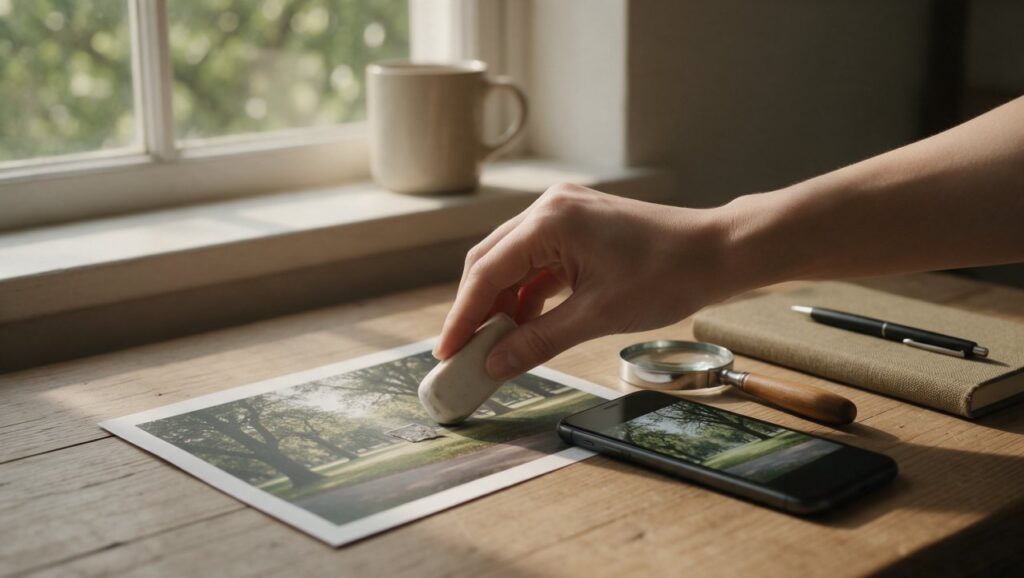
You finally got the shot. The light was perfect, the angle was right, and everyone was actually looking at the camera. Then you open your gallery and see it: a crumpled napkin on the grass, a stranger’s elbow in the corner, or a bright red exit sign ruining the background of an otherwise beautiful portrait. It happens constantly, and most people just accept it or take the photo again.
The good news is you do not need a computer or any editing experience to fix it. The phone in your pocket can remove distracting objects, wires, people, text, and blemishes in less than a minute. This guide walks you through how to do it well, which apps and websites actually help, and the mistakes that make edited photos look worse than the original.
What Counts as an Unwanted Object
An unwanted object is anything that pulls attention away from your subject or makes the photo feel messy. Sometimes that means literal trash, a random shoe, or a parked car. Other times it is a person who walked into the frame at the last second. It can also be smaller things: a pimple, a scratch on a table, a logo on a shirt, or a shadow that creates a weird shape.
Before you start removing things, decide what the photo is actually about. A portrait usually benefits from a cleaner background. A street photo might lose its character if you erase every person and sign. The goal is not always a sterile image. You want to remove things that feel like mistakes, not things that give the scene life.
There is a difference between retouching and rebuilding. Removing a small object from a wall or floor is usually easy. Removing something large that overlaps your subject, like a fence in front of a dog or a tree branch covering half a face, is much harder. The phone has to guess what was behind the object, and the more complex the area, the more likely the result looks smudged or warped.
Start with simple removals. A stray water bottle on a table, a power line in the sky, a date stamp in the corner. These give you a feel for how the tools work. Once you see how the app reconstructs textures, you can move on to bigger fixes.
How Removal Tools Actually Work
Most modern removal tools use a technique called inpainting. You brush over the object, and the app looks at the pixels around the selection to create a replacement. The algorithm studies nearby colors, lines, and textures, then fills the space with its best guess. On a simple background, this works almost like magic. On a busy background, the guess can look soft, blurry, or repetitive.
Some tools also use content-aware fill, which is a similar idea with more emphasis on matching patterns. When you remove a person from a beach, the app samples sand, waves, and shadows from around the person and blends them into the hole. If the background has a clear repeating pattern, like bricks or tiles, the result can be excellent. If the background is complex, like leaves or hair, the app may struggle.
Selection matters more than people expect. A tight selection around the object gives the tool less context to work with, but a loose selection can accidentally copy the wrong texture. Most phone apps let you adjust brush size, and the best approach is to cover the object completely while leaving a small margin of background around it. That margin helps the algorithm blend the edges.
Lighting and perspective still apply. If the object casts a shadow, you usually need to remove the shadow too. Otherwise the photo looks strange because the shadow remains without anything making it. The same goes for reflections. A removed cup on a glossy table should not leave a bright reflection floating in the wood.
Best Phone Apps for Removing Objects
There are dozens of apps that promise clean object removal, but a few have been around long enough to trust. Google Photos is the easiest starting point for many people because it is already installed on most Android phones and available for iPhone. Its Magic Eraser feature works in the editing tools, and for simple distractions it is often enough. You tap or circle the object and the app removes it. It is not perfect for large areas, but it is fast and free for many users.
Snapseed is another reliable option. It is a general photo editor from Google, and its Healing tool works like a brush. You zoom in, paint over the unwanted object, and release. Snapseed blends the spot with surrounding pixels. It gives you more control than Magic Eraser, especially for small blemishes, dust spots, and power lines. Because Snapseed is free and has no ads, it is a good place to learn manual retouching.
TouchRetouch is a paid app built specifically for removing objects. It has tools for lines, meshes, and quick repair. The app is straightforward: you mark an object with a brush or lasso and tap Go. TouchRetouch often handles complex backgrounds better than general editors because removal is its whole focus. It is available on both iPhone and Android, and many phone photographers keep it installed just for this purpose.
Adobe Photoshop Express is worth mentioning because it includes a healing feature alongside other editing tools. If you already use it for color correction or cropping, the removal tool is a handy extra. It is not as specialized as TouchRetouch, but it works well for small to medium distractions and keeps everything in one app.
Websites for Removing Objects Without Installing Anything
Sometimes you do not want another app. Maybe your phone storage is full, or you are working on a photo someone sent you. In that case, a website can do the job. The most established option is Fotor, which has an object removal tool in its online photo editor. You upload a photo, brush over the object, and let the site process it. Fotor has been around for years and works in a mobile browser without much trouble, though some of its features and full-resolution downloads may require a paid plan.
Another option is Cleanup.pictures. It is a simple web tool that asks you to upload an image, paint over what you want gone, and download the result. The free version handles lower resolution images, while higher resolution requires a paid plan. For quick social media photos, the free tier is usually enough. The site is easy to use on a phone because the brush is large by default and you can zoom with a pinch.
Using a website has tradeoffs. You need a decent internet connection, and uploading a full resolution photo can take time. There is also the privacy question. Any time you upload a photo to a web service, you are trusting that service with your image. For casual photos that is fine for most people. For private or sensitive images, a local app is the safer choice.
Web tools also tend to have less manual control. You get a brush size and maybe an undo button, but not much else. That simplicity can be a benefit when you want a fast fix. If the result looks wrong, you can usually refresh and try again with a different selection.
Step by Step: Removing a Person From a Background
Removing a person is the most common request, and it is also where people make the most mistakes. Let’s say you took a photo of a friend in front of a mural, and a tourist walked into the left side of the frame. The background behind the tourist is a painted wall with some cracks and color changes.
First, open the photo in your removal app of choice. Zoom in until the person fills a good portion of the screen. You want to see the edges clearly. Use the brush or lasso to select the person, not just their body but also the space they occupy. Include their shadow if it is visible. If the app has a lasso, trace around them with a small margin.
Second, apply the removal. Watch what happens to the area behind the person. If the wall looks smooth and natural, you are done. If the app leaves a smudge or repeats a strange pattern, undo the removal and try again with a different selection. Sometimes selecting the person in smaller chunks works better than removing them all at once.
Third, zoom out and check the photo at normal size. Many removals look fine zoomed in but obviously fake when you see the whole image. Look for repeated textures, blurry patches, or edges that do not line up. If something feels off, use a healing brush to clean small imperfections. The goal is that nobody notices you changed anything.
Removing Wires, Poles, and Other Straight Lines
Power lines, fence wires, and antenna poles are a special challenge. They cross large parts of the image and often overlap sky, buildings, and trees. The good news is that removal tools handle straight lines well because the background is often uniform. The bad news is that a single wire can cross several different backgrounds, which forces the app to make multiple guesses.
TouchRetouch has a dedicated lines tool for this. Instead of brushing over the whole wire, you draw a line along it and the app removes it in one pass. This is faster and often cleaner than brushing because the tool knows to follow the line. If you use Snapseed or Google Photos, you can still do it manually. Zoom in and paint over the wire in sections, removing a little at a time.
For a wire against a clear sky, the result is usually perfect. The app fills the space with more sky, and even a close look reveals nothing. For a wire crossing tree branches, be more careful. The app may remove part of a branch or create a weird gap in the leaves. In those cases, work in very small sections and undo immediately if the branch gets damaged.
Poles are harder than wires because they are thicker and often cast shadows. When you remove a pole from a sidewalk, you also need to remove its shadow and repair the ground. Do the pole first, then the shadow separately. If the ground has texture, like cobblestones or grass, the app may need several small passes to keep the texture consistent.
Cleaning Up Portraits: Blemishes, Stray Hairs, and Distracting Details
Portrait retouching is about restraint. The goal is to clean up temporary distractions, not to change what the person looks like. A pimple, a piece of lint on a collar, a stray hair across the forehead, or a shiny spot on the nose are all fair game. Changing bone structure, removing permanent features, or smoothing every pore is where photos start to look plastic.
Most removal apps have a small healing brush for this kind of work. In Snapseed, choose the Healing tool and zoom in close. Tap the blemish rather than painting over it. The app replaces the spot with nearby skin texture. If the blemish is on a curved area like the chin or cheek, you may need to tap a few times from different angles to get a natural result.
For stray hairs, the challenge is that hair crosses the face and the background. A single hair is easy to remove with a thin brush. A group of hairs is harder because the app has to rebuild skin, eyes, or clothing behind them. Work in small sections and keep the original photo nearby for comparison. If the eye starts to look soft or the skin texture disappears, undo and try a smaller brush.
Be especially careful around eyebrows, eyelashes, and the edge of the lips. These areas have strong shapes that the app can accidentally blur. If you remove a blemish near the eyebrow, the app might copy eyebrow hair into the skin. Zoom way in and use the smallest brush that covers the spot.
Common Mistakes That Make Edits Obvious
The biggest mistake is overusing the tool. You remove one thing, then another, then another, and suddenly the photo looks empty and unnatural. A beach with no people can look lonely. A street with no signs can look sterile. Before you remove something, ask whether it truly ruins the image or just bothers you in the moment.
Another common mistake is ignoring the edges of the photo. People often remove an object in the center of the frame but leave a half-erased shoe or shadow near the border. Scan the entire image after every removal. Zoom out, then zoom in on the corners and edges. What looks fine on a phone screen can look terrible on a larger display or printed.
Repeated textures are a telltale sign of bad removal. If the app copies a patch of grass, a brick pattern, or a wave and pastes it over the removed object, you may see the same swirl or crack twice. When that happens, undo the removal and try again with a different selection. Sometimes removing the object in two or three smaller pieces avoids the repetition.
Finally, do not edit a low resolution photo and expect it to hold up. Removal tools work best when there is enough detail to sample from. A heavily compressed image from a messaging app gives the algorithm less to work with, and the result often looks mushy. Use the original photo from your camera roll whenever possible.
When Removal Is Not the Right Fix
There are times when removing an object creates more problems than it solves. If the object covers a large part of your main subject, the app has to invent too much information. A person standing behind a table, a dog behind a fence, or a face partly hidden by a branch will rarely look right after removal. The reconstructed area may have weird proportions, missing details, or textures that do not match.
In these cases, cropping is often the better solution. If the unwanted object is near the edge, you can cut it out entirely. A tighter crop also draws more attention to the subject and can improve the composition. You lose some resolution, but for social media that rarely matters.
Another option is to darken or blur the distraction instead of removing it. Many photo editors have vignette and blur tools that can push background clutter out of focus. This works well for busy streets, crowded rooms, or messy desks. The object is still there, but it no longer competes for attention.
Sometimes the best fix is to retake the photo. If you are still in the same place and the distraction is temporary, like a person walking by or a car parked in the wrong spot, wait a moment and shoot again. Editing is a great backup, but a clean original always gives you more to work with later.
Quick Checklist Before You Save
Before you export the edited photo, run through this list. It takes thirty seconds and catches most problems.
- Zoom in and inspect the removed area at full size. Look for smudges, repeated textures, or blurry patches.
- Check the edges and corners of the frame for leftover shadows, reflections, or partial objects.
- Compare the edited photo with the original by toggling between them. Does the edit change the mood or story in a bad way?
- View the photo on a different screen, such as a laptop or a friend’s phone, to spot artifacts you missed.
- Ask a friend if they notice anything strange. Fresh eyes catch what you have stared at for too long.
- Save a copy instead of overwriting the original. You may want to re-edit later or use the original for a different crop.
If everything passes, you are done. The edit should be invisible. That is the whole point: the photo looks like it always should have, and nobody knows you spent five minutes fixing it.





