
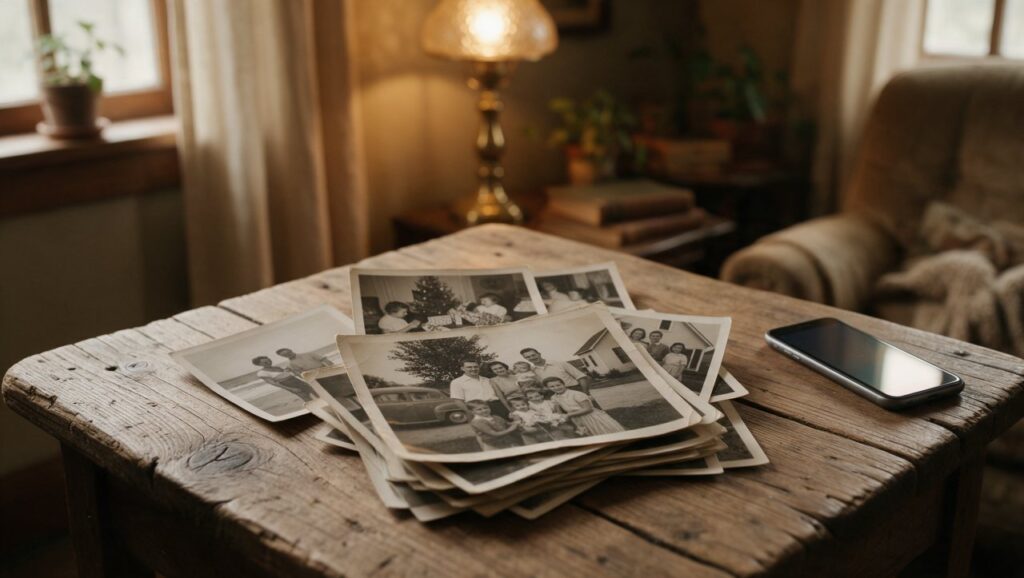
You pull a box down from the closet shelf and find a stack of photos from your grandparents’ wedding, your mom’s high school graduation, or your own blurry fourth birthday party. Some are faded to a pale yellow. Others have a crease straight through someone’s face. A few are so dark you can barely tell who is standing next to the cake. You want to save them, maybe share them with family or print new copies, but you don’t own a scanner and you don’t want to spend a weekend learning complicated software.
Your phone is already good enough to make a huge difference. With the right approach and a few free or low-cost apps, you can turn those tired prints into clean, shareable images. This guide walks you through the whole process, from taking a decent photo of the original to fixing color, removing dust, and sharpening faces. You can do almost all of it from your couch.
Start With a Good Photo of the Photo
Before any app can work its magic, you need a clean digital copy of the original print. This step matters more than most people expect. A poorly lit, crooked, or blurry phone photo of a print will limit how much detail you can recover later. The good news is that you don’t need a scanner or any special gear.
Find a flat, stable surface near a window during daylight. Indirect sunlight works best because it is bright but not harsh. Avoid direct sun, which can create hot spots and reflections on glossy photo paper. Lay the print flat and stand directly over it. If you can, place the photo on a plain dark background so the edges are easy to see. Hold your phone parallel to the print, not at an angle. Most phone camera apps now show a grid, which helps you keep the edges straight.
A common mistake is getting too close. Leave a little space around the print when you take the shot. You can crop later. If your phone has a 2x or 3x optical zoom option, use that instead of digital zoom, because optical zoom keeps more detail. Tap the screen to focus on a face in the photo, then slightly lower the exposure if the image looks washed out. On iPhone, you can swipe down on the sun icon after focusing. On many Android phones, you can use the exposure slider in the camera app.
Take several shots. Move slightly, refocus, and try again. You will often find that one shot is noticeably sharper than the others. If the print is glossy and you see a reflection, change your angle just a little or move the photo to a spot with softer light. A reflection can hide facial details and be hard to remove in an app later.
Crop and Straighten Before Anything Else
Once you have a decent capture, open it in your phone’s built-in photo editor. Both iPhone and Android phones include basic cropping and straightening tools. This step feels simple, but it makes every later edit easier. A straight photo with clean edges gives apps a better starting point, especially when you use automatic repair tools.
Crop close to the image but leave a tiny border if the print has a classic white frame. If the original has wavy or damaged edges, you can crop those out completely. Use the straighten tool to line up the horizon, a doorway, or the shoulders of the people in the photo. Even a small tilt can make the final result look unprofessional.
Don’t worry if the crop cuts off a small part of the background. The people and the main subject matter more than the exact original frame. If the photo is very old and has an irregular shape, you can still crop to a rectangle that includes the important parts. After cropping, save a copy rather than overwriting your original shot. That way you can go back and try a different crop later without losing anything.
Many phones also let you adjust perspective at this stage. If the print was slightly curled or you shot it from a small angle, use the vertical and horizontal perspective sliders to fix the shape. This is especially useful for larger prints that are hard to hold flat. Keep the changes small. Extreme perspective corrections can stretch faces and make the image look odd.
Fix Fading and Color Casts
Old color photos often fade to a reddish, yellow, or green cast. Black and white prints can turn sepia or develop a gray haze. The first real restoration step is bringing back a more neutral tone. Start with the automatic color tools in your photo app. On iPhone, the “Auto” button in the edit menu often warms up or cools down the image in a pleasing way. On Google Photos, the “Enhance” button does something similar.
If the auto fix looks too strong, pull the intensity back. Most apps let you tap the auto button again to compare before and after, then adjust from there. For photos with a strong yellow fade, reduce the warmth or increase the blue slightly. For photos that look too green, move the tint toward magenta. Work in small steps. A face that looks slightly pink is usually better than a face that looks gray or neon.
Black and white photos benefit from a different approach. Instead of trying to make them perfectly neutral gray, you can lean into the classic look. Raise the contrast a little and lower the black point until the dark areas feel rich. If the photo has a sepia tone you want to keep, don’t fight it. Just reduce the orange a touch so the skin doesn’t look muddy.
A common mistake is pushing saturation too high on old color prints. This can make skin look orange and clothes look unnatural. Old photos rarely had the vivid colors we see from modern phone cameras. A slightly muted, natural look often feels more authentic and flattering. You can always add a small amount of vibrance, which affects the weaker colors without making skin look radioactive.
Remove Dust, Scratches, and Creases
This is where phone apps really shine. Many modern editing apps include a healing or blemish removal tool that works surprisingly well on old photo damage. Google Photos has a “Magic Eraser” feature, and newer iPhones have a Clean Up tool in the Photos app on supported models. Snapseed, a free app from Google, has a “Healing” tool that is excellent for small spots and scratches.
The trick is to work in small areas. Zoom in far enough to see the dust specks and scratches, but not so far that you lose the shape of the face or object you’re repairing. Tap or draw over the damaged spot. The app samples nearby pixels and blends them over the damage. For a small white speck on a dark jacket, this works almost instantly. For a crease across a face, you may need to make several short passes.
Don’t try to fix a long crease in one swipe. Break it into small sections, especially where the crease crosses eyes, mouths, or hair. After each pass, zoom out and check the result. Sometimes the healing tool leaves a soft blur or a weird repeating texture. If that happens, undo the last step and try a shorter stroke from a different direction.
For dust that covers a large area, use the healing tool patiently. It might take a few minutes, but the result is worth it. Avoid the temptation to use a blur filter over the whole image. That hides dust but also destroys the fine detail that makes an old photo feel real. If an app offers a “denoise” or “smooth” effect, keep it very low. A slightly grainy photo with visible faces beats a plastic-looking image with no texture.
Sharpen Faces Without Overdoing It
After cleaning up damage, the photo might still look a little soft. That’s normal for old prints, especially small ones that were enlarged. A gentle sharpening pass can bring back the edges of eyes, lips, and hair. Most phone editors have a sharpness slider, and Snapseed has a “Details” tool that combines sharpening with a useful structure effect.
Start with a low sharpening amount, around 10 to 20 percent on most sliders. Focus on the eyes. Zoom in and watch how the catchlights and eyelashes respond. If the image starts to look crunchy or grainy, back off. Sharpening cannot invent detail that isn’t there, but it can make the existing detail easier to see.
Some apps also let you increase clarity or structure. This boosts local contrast and can make an old photo feel more present. Again, less is more. A common mistake is applying heavy sharpening to a photo that was already soft, which creates halos around faces and makes skin look harsh. If you notice white outlines around people’s heads, reduce the sharpening immediately.
For very blurry faces, you may be tempted to use an AI face enhancer. Several phone apps offer this, and the results vary widely. They can help with a slightly out-of-focus face, but they often make people look like different individuals. Use them as a last resort and always compare the enhanced face with the original at full size. If the person no longer looks like themselves, undo it. Family members will notice that faster than any dust spot.
Use Dedicated Photo Restoration Apps
Beyond general editing apps, there are tools built specifically for restoring old photos. These apps combine several steps into one tap, which can save time if you have a big stack to work through. One long-established example is Remini, which is known for enhancing faces in old or low-quality images. Another is Google Photos itself, which now includes a “Photo Unblur” option on some devices and continues to add repair features. Adobe offers Photoshop Express, a mobile app that includes basic healing, noise reduction, and color tools in a familiar interface.
With these apps, the workflow is usually simple. You import the photo, choose a restore or enhance option, and wait a few seconds. The app returns a new version with improved sharpness and reduced damage. The catch is that automatic tools don’t always respect the original look. A face might come back smoother but also slightly wider or with different lighting. Always compare the restored version side by side with your original capture.
A good approach is to use a dedicated restoration app for a first pass, then bring the result back into Snapseed or your phone’s editor for final color and cropping adjustments. This gives you the speed of automation with more control over the final look. If the app over-smooths skin, you can add a tiny bit of grain or reduce the clarity to bring back a more natural feel.
Be careful with apps that promise “one-tap miracles.” They can be fun, but they sometimes replace damaged areas with invented detail that doesn’t match the original. That’s fine for a casual share, but not ideal if you plan to print the photo or give it as a gift. The best results usually come from a mix of automatic repair and manual cleanup.
Colorize Black and White Photos
Adding color to an old black and white photo is a popular way to make it feel more immediate. Several mobile apps and web tools can do this automatically. MyHeritage is a well-known service that includes photo colorization among its family history tools. The process is simple: you upload a black and white photo, and the service returns a colorized version. Free use is usually limited to a few photos, so check the current terms.
The results can be striking, but they are not always accurate. The tool guesses colors based on patterns and common objects. A blue shirt might become green. A red car might become brown. Skin tones are usually in a believable range, but clothing and background colors are often creative guesses. If you plan to share the colorized version with older relatives, mention that the colors are estimates, not historical records.
For more control, you can colorize manually in apps that support selective color adjustments. This takes longer but lets you choose the color of a dress, a wall, or a car based on family knowledge. Start with an automatic colorization, then use a selective tool to adjust the most obvious wrong colors. Even changing one or two elements can make the photo feel more personal and believable.
A common mistake is keeping the colorized version as the only copy. Always save the original black and white scan or photo too. Many people prefer the classic look, and you may want to compare them side by side before deciding which one to print or share. Colorization is an artistic choice, not a requirement for restoration.
Save, Share, and Print Without Losing Quality
After all that work, you want the final image to survive. Save it at the highest quality your app allows. On both iPhone and Android, use the app’s own save or export option rather than a screenshot, because screenshots reduce resolution. If the app asks you to choose a size or quality, pick the largest one.
If you plan to share the photo in a family group chat, most messaging apps will compress it. That’s fine for a quick look, but not for printing. For a print, use a photo printing service that accepts large files. You can upload directly from your phone to services like Google Photos or dedicated print apps. The key is to upload the full-resolution file, not a version you already sent through a chat app.
When printing, choose a size that matches the original. A small 3×5 print will not look great blown up to 8×10, no matter how much sharpening you applied. If you want a larger print, print a test copy first and check it from a normal viewing distance. Many restored photos look soft up close but perfectly fine on a wall or in a frame.
Back up your restored photos in at least two places. A cloud service like Google Photos or iCloud works well. You can also keep a copy in a local folder on your phone or an external drive. Old photos are irreplaceable, and your restored versions are now part of that history. Treat them with the same care as the originals.
Quick Restoration Checklist
Use this checklist each time you restore an old photo. It keeps the process simple and prevents the most common mistakes.
- Take the photo in bright, indirect light with the phone parallel to the print.
- Take several shots and pick the sharpest one.
- Crop and straighten before doing any other edits.
- Fix color casts with small adjustments, not heavy filters.
- Remove dust and scratches with a healing tool in short, careful passes.
- Zoom out often to check your work.
- Sharpen faces only until the eyes look clear, then stop.
- Compare any automatic restoration with the original before saving.
- Keep a copy of the unedited capture and the original black and white version.
- Export at full quality and back up the final image in two places.
Work on one photo at a time until you feel comfortable. You’ll get faster with practice, and soon that whole box of old prints will feel less like a chore and more like a way to spend an afternoon with the people in the pictures.





