
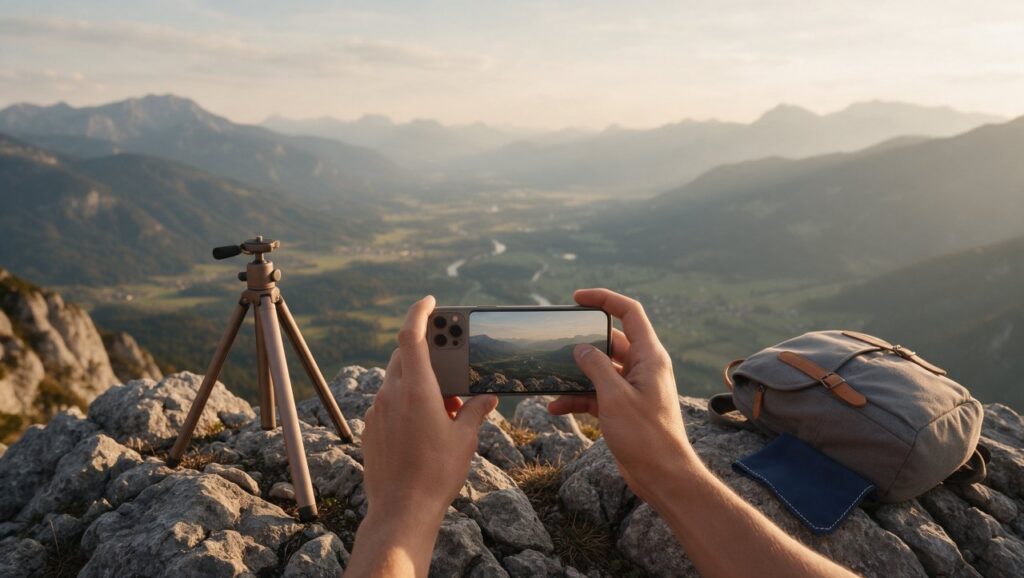
You are standing on a trail, the light is turning soft and golden, and the view in front of you looks like a postcard. You pull out your phone, tap the shutter, and later at home the photo feels flat, a little washed out, and nothing like what you remember. This is the gap between seeing a scene and capturing it well, and it is exactly where most phone photographers get stuck.
Good landscape photos from a phone are not about luck or having the newest device. They come from a small set of habits before you shoot and a few focused edits after. This guide walks through both sides, from planning your shot to finishing it in an app, so your next outdoor photo actually looks like the moment felt.
Plan the Shot Before Opening the Camera
Most people open the camera app, point at the widest part of the scene, and tap. That works for snapshots, but it rarely gives you a landscape photo with a clear subject. Before you shoot, ask one simple question: what is the main thing in this photo? It could be a mountain peak, a lone tree, a curve in a river, or a row of dunes. If the answer is “everything,” the photo will usually feel busy and weak.
Walk a little before you commit. Move closer to a foreground object, step to the side so a branch is not poking into the edge, or crouch down to change the relationship between the ground and the sky. Small changes in position often do more than any filter later. If you are near water, look for a reflection or a leading line like a shoreline that pulls the eye toward the subject. If you are in a forest, look for a gap where light hits one area more than the rest.
Check the weather before you go. A partly cloudy sky often looks better than a blank blue one because the clouds add texture and scale. The section on light below covers the best times of day.
One common mistake is shooting every landscape in the default wide lens. The wide view is useful, but it can make distant mountains look small and push everything far away. Try the telephoto lens if your phone has one. It compresses the scene and makes layers of hills or trees feel closer together. If you do not have one, a small zoom is fine, but expect some loss of sharpness.
Set Exposure and Focus the Right Way
Phone cameras try to guess what you want, and with landscapes they often guess wrong. If the sky is bright and the land is dark, the camera may brighten the land and blow out the sky, or darken the sky and lose all detail in the shadows. You need to tell the phone what matters.
Tap on the main subject to set focus. Then look for the small sun icon next to the focus box. On most phones you can slide it down to darken the image or up to brighten it. For a typical landscape, start by sliding it down just enough to keep the brightest part of the sky from turning pure white. This protects the highlights, which are harder to recover than shadows in editing. If the ground then looks too dark, you can lift the shadows later in an app.
A better option on many phones is to use HDR, or high dynamic range. This mode takes several exposures and blends them so the bright sky and darker land both keep detail. On iPhones, HDR often turns on automatically in tricky light. On Android phones, you may see an HDR button in the camera app. Use it for scenes with a big difference between sky and ground, like a bright horizon over a shaded valley. It is not a magic fix, but it helps a lot when you cannot control the light.
Do not use the flash. It will not reach the mountains and will only make nearby grass or rocks look strange. Also avoid digital zoom beyond about 2x or 3x unless you have a phone with a strong telephoto lens. Heavy digital zoom crops the sensor and leaves you with a soft, noisy image. If you need to get closer, walk closer when you can.
Compose With Layers, Not Just the Horizon
A classic landscape photo has three parts: something interesting in the foreground, a clear middle ground, and a background that gives the scene scale. This layering is what makes a photo feel deep instead of flat. The horizon alone is not a subject, so do not let it sit there with nothing else pulling attention.
Start by placing the horizon line deliberately. If the sky is dramatic, put the horizon in the lower third of the frame. If the land is more interesting, put it in the upper third. Avoid cutting the photo exactly in half unless the symmetry is the point, like a perfect reflection on a lake. A centered horizon can work, but it often makes the image feel static.
Look for a foreground element that is close to the lens, such as a rock, a patch of flowers, a fence post, or a ripple in the sand. Get low and place that object in the bottom part of the frame. This gives the eye a starting point and makes the distance feel farther away. On a phone, you can often get very close to a foreground object and still keep the background sharp because the small sensor has a naturally deep focus.
Turn on the grid lines in your camera settings. The rule of thirds grid helps you place the horizon and main subject off-center without guessing. Many phones also have a level indicator, which is useful for keeping the horizon straight. A tilted horizon is one of the most common mistakes in landscape photos, and it is easy to miss when you are looking at a bright screen outdoors.
Shoot in the Right Light and Weather
Light makes or breaks a landscape photo more than any app or filter. Bright midday sun can create harsh shadows, blow out highlights, and make colors look pale. The hour after sunrise and the hour before sunset, often called golden hour, gives warm, angled light that brings out texture in rocks, grass, and water. Blue hour, the short period before sunrise or after sunset, gives a cooler, softer look that works well for coastlines and city skylines.
Overcast days are underrated for landscapes. The clouds act like a giant softbox, reducing harsh shadows and making greens and earth tones look richer. If you are shooting a forest, a waterfall, or a field of flowers, an overcast sky can be better than full sun. Just be careful that the sky itself does not become a flat gray sheet. In those conditions, frame the shot so the sky takes up less of the image, or use the clouds as a soft background rather than the main feature.
Wind is another factor. It can blur leaves and grass, especially in lower light when the phone uses a slower shutter speed. If it is windy, brace your phone against a tree, fence, or rock, or use a small tripod made for phones. Even holding the phone with two hands and tucking your elbows against your body helps. Some phones let you use a volume button or a timer to trigger the shutter without shaking the camera.
Do not pack up when the sun goes down. Twilight can produce some of the most interesting colors, especially after a partly cloudy day. If your phone has a night mode, it will automatically extend the exposure in low light. Keep the phone very still for these shots. A cheap phone tripod or even propping the phone on a bag can make a huge difference.
Common Mistakes That Ruin Phone Landscapes
The biggest mistake is shooting everything from eye level while standing straight up. This is how we normally see the world, so the photo feels ordinary. Crouch, kneel, or hold the phone low to the ground to change the perspective. A low angle makes foreground objects larger and gives the scene more depth. A higher angle, like holding the phone above your head, can work when you want to show a winding path or a pattern in the ground.
Another mistake is leaving distracting objects at the edges of the frame. A stray branch, a trash can, a parked car, or half a person can pull the eye away from the landscape. Before you tap the shutter, scan all four edges of the screen. Move slightly or zoom in a little to remove the distraction. You cannot always crop it out later without losing part of the scene.
Overediting is just as common as underexposure. When you first discover saturation and clarity sliders, it is tempting to push them far. The result often looks unnatural, with neon green grass and a sky that looks painted. A good rule is to make your edit, then set the phone down for a minute and look again. If the first thing you notice is the edit, pull it back a little. The goal is to match what the scene felt like, not to create a fantasy version of it.
Finally, do not rely on a single shot. Take a few frames with different exposures, different compositions, and different focal lengths. You can decide later which one has the best balance. Phone storage is cheap, and the light may change in seconds. Shooting a small burst or a few deliberate variations gives you options without slowing you down.
Edit in Steps Using Phone Apps
Start with the built-in editor in your phone’s Photos app, because it handles basic fixes quickly and without extra downloads. Open the photo, tap edit, and work through the adjustments in a consistent order. First, straighten the horizon and crop out any edge distractions. Then adjust exposure or brightness if the whole image is too dark or too light. Next, pull down the highlights if the sky is too bright, and lift the shadows if the land is too dark. This single step often makes a bigger difference than any filter.
After that, adjust white balance or warmth. Landscape photos often benefit from a slightly warmer tone, especially if the shot was taken in shade or on a cloudy day. Be careful not to make snow or white clouds look yellow. A small change, just a few points, is usually enough. Then add a little contrast to make the image pop, but not so much that you lose detail in the dark areas.
For more control, use a dedicated editing app like Snapseed or Adobe Lightroom for mobile. Snapseed is free and has a selective tool that lets you brighten or darken just part of the image, which is perfect for bringing out a dark foreground without changing the sky. Lightroom for mobile has strong color controls and can copy your adjustments from one photo to others from the same trip, and custom presets are available on its paid plan.
VSCO is another long-standing app that works well for subtle, film-like color edits. Its strength is in tasteful filters that do not overdo the effect. Whichever app you use, learn a few controls deeply instead of trying every slider. Most good landscape edits come down to exposure, highlights, shadows, white balance, and a gentle touch of vibrance or saturation.
Use Selective Edits for Sky and Ground
The most common problem in landscape photos is that the sky and the ground need different adjustments. The sky may need to be darker and slightly cooler, while the ground needs more shadow detail and warmth. A global edit changes the whole photo at once, which often fixes one area and hurts the other. Selective editing solves this.
In Snapseed, open the Selective tool and tap on the sky. You can then adjust brightness, contrast, and saturation just in that area. Slide down the brightness a little and add a touch of contrast to make clouds stand out. Then add a second control point on the foreground and lift the brightness or structure to bring out texture in grass, rock, or sand. The effect stays local, so the two areas balance each other instead of fighting.
In Lightroom for mobile, you can use masking to select the sky or the subject. The sky mask is especially useful for landscapes. Once the sky is selected, lower the exposure slightly and increase the dehaze or clarity a small amount. This can turn a washed-out sky into one with visible cloud detail. You can also invert the mask to edit the land separately, raising shadows and warming the color a touch.
Do not push these local edits too far. If the sky looks obviously darker than the land, the photo starts to feel fake. Keep the transition natural by using a light hand and comparing the before and after versions often. Most good selective edits are subtle enough that a viewer cannot tell they were made, but strong enough that the photo feels closer to what you saw.
Color Grade Without Making It Look Fake
Color grading is about giving the photo a consistent mood, not just making everything more colorful. A misty mountain scene might look better with slightly cooler blues and muted greens. A desert scene might benefit from warmer oranges and softer yellows. The key is to pick a direction and apply it gently across the whole image.
Start with white balance before touching color sliders. If the photo is too blue, warm it up a little. If it is too yellow, cool it down. Then look at the individual colors. Many editing apps have an HSL panel where you can adjust hue, saturation, and luminance for specific colors. For landscapes, the most useful sliders are usually green, blue, and yellow. Lowering the luminance of greens can make forests look deeper, while slightly desaturating blues can give a calm, natural sky.
Avoid the temptation to max out the saturation slider. High saturation makes all colors louder at once, which often looks unnatural on skin, rocks, and sky. Use vibrance instead if your app has it. Vibrance boosts muted colors more than already-strong ones, so it is gentler on landscape photos. A small increase, around ten to twenty points, is usually plenty.
If you want a consistent look across many photos, create a simple preset in Lightroom or save your edits in Snapseed as a Look. Apply the same white balance, tone curve, and color adjustments to each photo from the same location or time of day. This gives a series of photos a cohesive feel, which is especially nice when you share them together or build a small travel album.
Sharpen and Export Without Losing Quality
Sharpening should be the last step in your edit, after cropping, color, and exposure are done. It adds a little crispness to edges, but too much creates a grainy, artificial look. In most apps, a small amount of sharpening, around ten to thirty on a scale of one hundred, is enough for a phone photo. Zoom in to check the result before you save.
Some apps also have a structure or clarity slider. Structure brings out mid-tone texture and works well on rocks, bark, and sand. Clarity adds contrast to edges and can make a hazy scene feel clearer. Use these sparingly. A little structure on a foreground rock can make the photo feel more tactile, but too much makes everything look crunchy.
When you export, choose the highest quality available. In most apps, that means selecting “save as copy” or “export at original size” rather than a compressed sharing option. If you plan to post the photo online, keep in mind that social platforms will compress it further. Starting from a high-quality export gives you the best chance of keeping detail.
Do not edit a photo, save it, and then edit the saved copy again unless you have to. Repeated saving and recompressing can slowly degrade the image. Work from the original file when possible, and keep your edits non-destructive by using apps that let you go back and adjust settings later. Lightroom for mobile and Snapseed both let you revisit an edit and change it without starting over.
Quick Checklist Before and After Your Shot
Use this list in the field and again when you sit down to edit. It keeps the process simple and prevents the most common landscape photo problems.
- Find one clear subject before you shoot.
- Move your feet, not just the zoom, to improve the composition.
- Straighten the horizon using grid lines or a level indicator.
- Tap to focus, then slide exposure down to protect bright skies.
- Use HDR or night mode when the scene has strong light differences.
- Include a foreground object to add depth.
- Check all edges for distracting objects before tapping the shutter.
- Shoot a few variations with different framing and exposure.
- Edit exposure, highlights, and shadows before touching color.
- Use selective edits for sky and ground instead of global fixes.
- Keep saturation and sharpening subtle.
- Export at the highest quality and keep the original file.





