
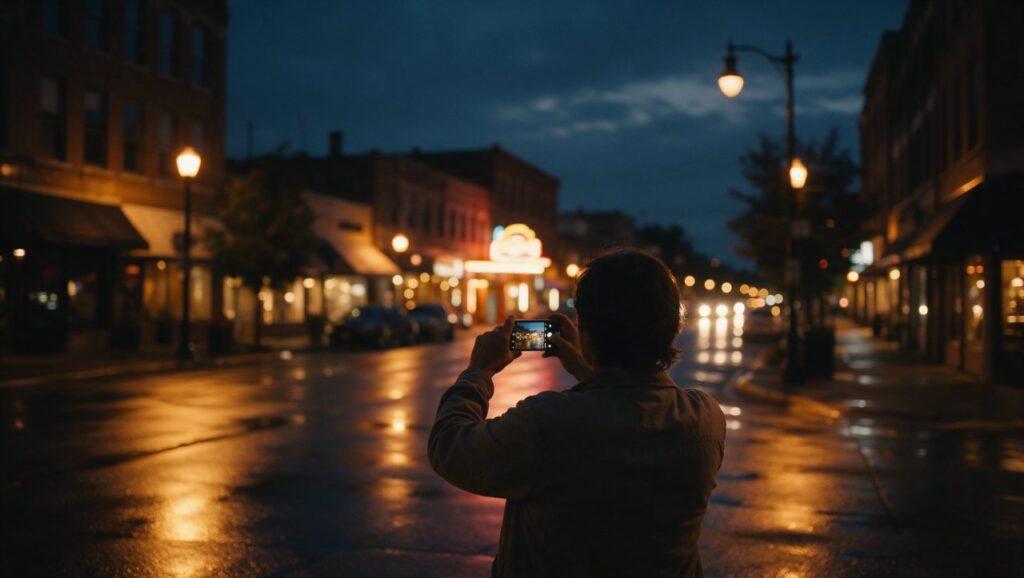
You are standing on a sidewalk after dinner. The streetlights are glowing, there is a neon sign above a bar, and the sky still has a faint blue tint. You pull out your phone, frame the shot, and tap the shutter. The result is either a dark smudge, a blurry mess, or a weird orange photo that looks nothing like what you saw. Night photography on a phone is one of the most frustrating things for casual shooters, but it is also one of the easiest places to see a big jump in quality once you learn a few simple habits.
You do not need a new phone or a bag of accessories. You need to understand how your phone camera thinks in low light, where to place it, and how to work with light instead of fighting it. The tips below are built for real situations: city walks, backyard parties, concerts, camping trips, and late-night portraits. They work on iPhones, Android phones, and anything in between.
Understand What Your Phone Is Doing in the Dark
When light drops, your phone camera makes a few automatic choices. It usually raises the ISO, which is the sensor’s sensitivity to light. That sounds helpful, but a high ISO also introduces grain and color noise. At the same time, the camera slows down the shutter speed to let in more light. A slow shutter means any tiny movement, including your hand shaking, turns into blur.
Most modern phones have a night mode that takes a different approach. Instead of one long exposure, the camera captures several shorter frames over a few seconds and blends them. Software aligns the frames, reduces noise, and brightens shadows. That is why your phone often asks you to hold still for two or three seconds when you shoot at night. The phone is not taking one photo; it is taking many and combining them.
The practical takeaway is simple. If your phone has a night mode, use it. But do not assume it fixes everything. Night mode cannot freeze a moving subject, and it cannot create detail that the sensor never captured. A dark alley shot in night mode will still look like a dark alley, just cleaner. The best night photos come from finding a decent light source and using night mode to polish the result, not to rescue a hopeless scene.
Common mistake: leaving the flash on auto. The phone flash is a tiny LED, and at night it creates harsh, flat light that makes people look like wax figures. Turn it off for almost every night photo. The only exception is when you intentionally want that direct flash look, like a disposable camera party shot.
Steady Your Phone Before You Tap the Shutter
Blur is the number one reason night photos fail. Even with night mode, a moving phone produces soft edges and ghosting. The fix is not complicated, but it requires a small change in how you hold the device.
Hold the phone with both hands. Tuck your elbows against your ribs. This turns your arms into a small tripod and reduces the natural sway of your hands. If you are standing near a wall, lamp post, table, or railing, lean against it or rest the phone on it. A solid surface beats even the best image stabilization.
When you tap the shutter button, do it gently. A hard tap jerks the phone at the exact moment the exposure starts. You can also use the volume button on the side of the phone as a shutter release. Some people find that easier to press without moving the camera. On many phones, you can also use a voice command or a timer. Setting a two- or three-second timer means you press the button, then steady the phone with both hands while the photo is taken.
For longer exposures, consider a tiny phone tripod. There are inexpensive tabletop models that fold up small enough for a jacket pocket. They help most when you want to shoot a skyline, a bridge, or a street scene with light trails. You do not need anything fancy. A cheap tripod with a phone clamp is enough, as long as it does not wobble.
A real example: you are on a balcony overlooking a city street. Handheld, the photo looks soft and the car lights smear. With the phone propped on the railing and a two-second timer, the same scene becomes sharp, with clean streaks of red and white light. Same phone, same moment, completely different result.
Find Light Instead of Fighting Darkness
The biggest mistake in night photography is trying to shoot where there is no light at all. Your eyes adjust to darkness, so a scene can look interesting to you while the phone sensor sees almost nothing. The trick is to look for pockets of light and place your subject inside them.
Street lamps, neon signs, store windows, string lights, car headlights, phone screens, and even vending machines all throw off enough light for a phone sensor. When you are shooting a person at night, move them toward the light. Have them face the light source, not stand with their back to it. A face lit by a warm storefront window looks natural and clear. A face lit only by the sky looks muddy and gray.
For objects and scenes, think about what the light is doing. A wet street after rain reflects signs and lamps, doubling the available light and adding color. A neon sign behind a subject creates a nice rim of color, but you will still need some light on the front of the person. A row of street lamps creates pools of light. Place your subject in one of those pools.
Common mistake: standing too far from the light. Light falls off quickly. Moving a subject three feet closer to a lamp can make a bigger difference than any camera setting. When a photo looks too dark, do not immediately reach for more editing. Walk closer to the light first.
Also pay attention to the color of light. Sodium street lamps are orange. LED signs are blue or pink. Your phone will try to correct the color, but mixed sources can look strange. Sometimes that is fine and adds mood. Other times it makes skin look sickly. If the color feels off, try moving to a spot with one main light source instead of three competing ones.
Lock Focus and Adjust Exposure Manually
In daylight, you can point your phone at a scene and trust the auto settings. At night, the camera often guesses wrong. It may focus on the background when you want the person in front sharp. It may brighten the whole frame too much or too little. Taking manual control of two things, focus and exposure, fixes most of these problems.
On both iPhone and Android, tap the screen where you want the focus to be. If you tap on your subject’s face, the camera will focus there and adjust exposure for that area. But there is a catch. At night, the camera may still shift focus after you tap. That is why you should lock it. On an iPhone, press and hold the focus point until you see an AE/AF lock indicator. On most Android phones, you can tap and hold or look for a focus lock option in the camera settings. Locking focus keeps the camera from hunting in the dark.
After locking focus, adjust exposure. You will see a small sun icon next to the focus square. Slide it up to brighten the image or down to darken it. At night, a small drop in exposure often makes a photo look richer. It deepens the blacks and keeps bright signs from blowing out to pure white. A small increase can help if your subject is backlit or standing in shadow.
Real example: you are photographing a friend outside a bar with a neon sign behind them. The phone sees the bright sign and darkens the whole photo, leaving your friend as a silhouette. If you tap on your friend’s face, then slide the exposure up slightly, the face becomes visible while the sign stays colorful. It takes two seconds and changes the whole shot.
Do not overdo it. Sliding exposure too high at night produces a grainy, washed-out image. The goal is balance, not maximum brightness.
Use Night Mode the Right Way
Night mode goes by different names depending on your phone, but the idea is the same. The camera captures multiple frames and merges them into one brighter, cleaner photo. The key is knowing when to use it and when to turn it off.
Use night mode for still scenes: buildings, landscapes, empty streets, cars parked under lights, food on a restaurant table, and posed portraits where the person can hold still. The longer the exposure, the more light the camera gathers, but also the more chance for motion blur. Most phones let you adjust the night mode duration. A one- or two-second capture is enough for many scenes. A five-second capture can work for a skyline if the phone is stable.
Turn night mode off for moving subjects. If someone is walking, dancing, or laughing hard, night mode will smear them. The same goes for pets and kids. In those cases, it is better to use the regular photo mode and accept a little more grain in exchange for a sharp moment. A sharp, slightly noisy photo of a friend laughing beats a clean, blurry one.
Another tip: night mode works best when there is some light. It is not magic. A scene lit by a single candle will still be dim. A scene lit by a streetlamp will look surprisingly good. Feed night mode a little light and it will reward you with detail and color.
Common mistake: moving the phone as soon as the shutter sound plays. Night mode often needs a second or two after the sound to finish processing. Keep holding still until the progress indicator disappears. If you lower the phone too early, the final image can be soft.
Shoot in Raw or Use a Manual Camera App for Tricky Scenes
Your phone’s default camera app is convenient, but it makes a lot of decisions for you. For night shots where you want more control, a manual camera app can help. Apps like Adobe Lightroom Mobile (iPhone and Android) and Halide (iPhone only) let you adjust ISO, shutter speed, white balance, and focus independently, and Android phones often include a similar Pro mode in the stock camera app. They also let you shoot in raw format, which preserves more image data for editing later.
Raw files are not for everyone. They look flat and dull straight out of the camera because they skip the phone’s automatic processing. But they give you much more room to recover shadows, fix color, and reduce noise in an editing app. If you plan to edit your night photos, raw is worth the extra step.
A manual app shines in specific situations. Say you want to photograph a Ferris wheel at night. The auto camera might choose a fast shutter, freezing the wheel and making it look static. With a manual app, you can set a slower shutter speed, like half a second or one second, and create a soft blur of colored lights. You will need to brace the phone or use a tripod, but the result is far more interesting.
Another example: you are shooting the moon. The auto camera will overexpose the bright moon against the black sky. In a manual app, lower the ISO and increase the shutter speed until the moon’s surface shows detail. The moon is actually very bright, so it requires daylight-like settings even at night.
You do not need a manual app for every night photo. Most people will be happy with the built-in night mode for everyday shots. But if you enjoy experimenting, a manual app opens up light trails, star shots, and cleaner long exposures. Just remember that a slow shutter always needs a stable phone.
Position People and Objects for Better Night Portraits
Night portraits are tricky because you have two competing goals: enough light on the face and a nice background. Most people stand too far from the light and too close to a busy background. The result is a dark face and a messy frame.
Start by placing your subject near a light source. A storefront window, a streetlamp, a neon sign, or even a phone flashlight bounced off a wall can work. Have the person face the light. If the light is overhead, ask them to tilt their chin up slightly so their eyes do not fall into shadow. If the light is from the side, turn their face toward it. A little shadow on one side of the face adds depth and looks more natural than flat, front-on light.
Pay attention to the background. A bright, busy background competes with your subject. A dark, simple background makes the person stand out. If the background is bright, move yourself or your subject so the background is less distracting. Shooting from a slightly lower angle can also help, because it puts more of the person against the sky or a darker wall instead of a crowd.
For a quick and flattering night portrait, try this setup. Find a neon sign or a lit window. Have your friend stand about three feet in front of it, turned slightly toward the light. Stand back and frame them from the chest up. Lock focus on their face, lower exposure a touch, and shoot in night mode if they can hold still. The result looks intentional, not like a random snapshot.
Avoid the built-in flash. If you must add light, use another phone’s flashlight aimed at a white wall or ceiling, not directly at the person’s face. Bounced light is softer and more even. Direct light from a phone flashlight is harsh and blue. It makes skin look pale and shadows look deep.
Edit Night Photos Without Making Them Look Fake
Editing is where many night photos go wrong. People push the brightness too far, and the image turns gray and noisy. Or they crank the saturation, and the colors look electric. The best night edits are subtle. You want to clean up the photo and guide the eye, not transform it into a different scene.
Start with exposure. Raise it only until the important parts are visible. Do not try to make night look like day. Shadows are part of the mood. If a shadow area is pure black, that is often fine. The eye accepts dark shadows at night. What you should fix is a subject that is too dark or a background that is too bright.
Next, adjust contrast. A slight increase in contrast helps separate the subject from the background and makes colors feel richer. Be careful not to crush the blacks or blow out the highlights. Many editing apps, including the built-in photo editor on your phone, have separate sliders for highlights and shadows. Pull the highlights down a little to recover bright signs. Lift the shadows a touch to show detail in dark areas without making the whole image gray.
White balance is another common issue. Night photos often look too orange or too blue. Use the warmth slider to correct skin tones. A good rule is to make skin look natural first, then worry about the rest of the scene. If the background is neon pink and blue, you do not need to neutralize it. The color is part of the charm.
For noise reduction, go easy. Strong noise reduction smooths out grain but also erases fine detail, making faces look waxy. A little grain is okay. It looks like film. If the noise bothers you, reduce it slightly and add a touch of sharpening to bring back edges.
Apps like Lightroom Mobile, Snapseed, and the built-in Photos editor on iPhone or Google Photos on Android all handle these basic adjustments well. You do not need a desktop program. A few careful sliders on your phone can make a night photo go from flat to finished in under a minute.
Practice With One Scene and Compare Your Results
The fastest way to improve at night photography is to shoot the same scene several different ways. Pick a spot near your home: a corner with a streetlamp, a storefront with a sign, or a balcony view. Visit it at night and take a series of photos. Change one thing each time.
First, shoot the scene with the default camera settings. Then turn on night mode and shoot again. Then brace the phone on a wall and use a timer. Then tap to lock focus on a bright area and shoot. Then tap a dark area and shoot. Then use a manual app and try a slower shutter. Compare all the results side by side. You will quickly see what each change does.
This kind of practice teaches you more than any article. You learn how your specific phone behaves, what its limits are, and which techniques give you the look you want. You also train your eye to notice light, movement, and framing at night.
Do not worry about getting a perfect photo every time. Night photography has a high miss rate, even for experienced shooters. The goal is to increase your percentage of keepers. If you take ten photos and two look great, that is a good night. Over time, the ratio improves.
Also remember that some scenes just will not work. A dark park with no lights, a moving subject in a dark room, a distant skyline through a dirty window. Knowing when to put the phone down is a skill too. Some moments are better enjoyed than photographed.
Quick Night Photo Checklist
Here is a simple list to run through before you press the shutter at night.
- Turn off the flash.
- Look for a light source and move yourself or your subject toward it.
- Hold the phone with both hands and tuck your elbows in.
- Brace against a wall, railing, or table if possible.
- Tap to focus on the main subject and lock focus if you can.
- Slide the exposure up or down until the preview looks balanced.
- Use night mode for still scenes, but turn it off for moving subjects.
- Set a two-second timer for long exposures or when the phone is propped up.
- Keep holding still until the camera finishes processing.
- Check the photo and adjust your position or exposure before shooting again.
Work through this list a few times and it will become automatic. Your night photos will get brighter, sharper, and more interesting without buying anything new.





