
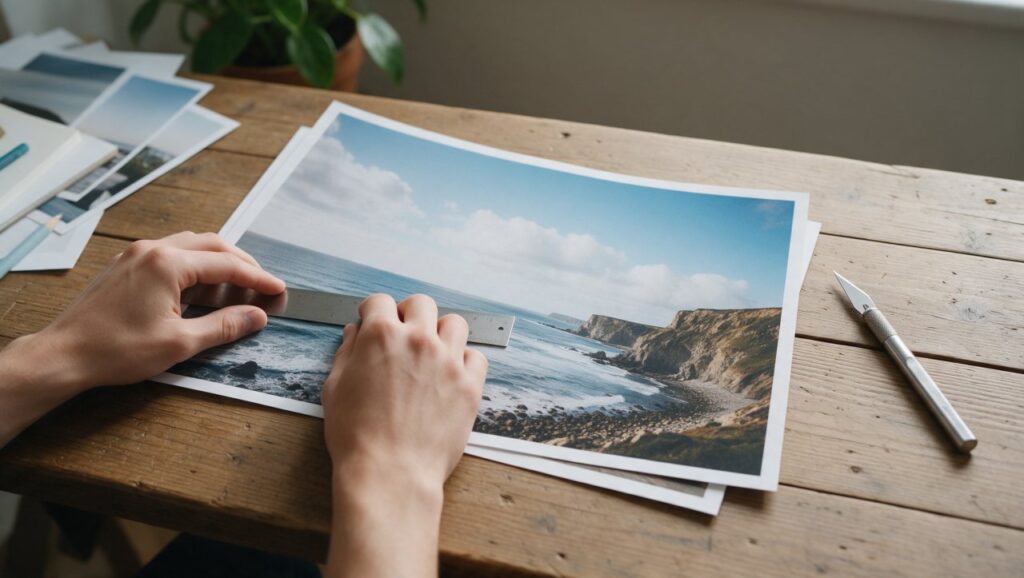
You just got back from a trip. You found a quiet side street with great light, held your phone steady, and snapped a photo of an old painted door. It looked fine at the time. Now, looking at it on a bigger screen, the door tilts slightly to the left, there is a trash can creeping into the right edge, and the whole thing feels a little loose. You do not need a fancy camera or a design degree. You just need to straighten it and crop out the junk.
Straightening and cropping are the two most boring-sounding edits you can make, and they are also the two that will improve your photos more than almost any filter. This guide is for phone users who want to stop guessing. You will learn what order to work in, which apps and web tools actually help, and how to avoid the little mistakes that make a good photo look off.
Why Straightening Comes Before Anything Else
Most people crop first and straighten later, or they skip straightening entirely. That is backwards. If your horizon is tilted, every crop you make is based on a broken frame. You end up cutting off the top of someone’s head or leaving too much dead space on one side because your brain is trying to fix the tilt without realizing it.
Straightening first gives you a true rectangle to work with. It also reveals how much of the image you will actually lose. When you rotate a photo by even two degrees, the corners of the original image swing outside the frame. The app has to zoom in slightly to fill those empty gaps. That means a small straighten changes your crop. Do it first and you will not have to redo your composition later.
In most phone apps, the straighten tool is tucked into the crop menu. Open the crop tool, then drag your finger left or right on the straighten slider. Some apps overlay a grid to help you line things up. If there is no visible horizon, find any strong vertical line instead: a door frame, a lamppost, the edge of a building. Vertical lines are often easier to judge than horizontal ones, especially in city photos.
A common mistake is relying on the auto-straighten button and not checking the result. Auto tools look for the strongest line in the photo and assume it should be perfectly level or vertical. But not every line in real life is level. A street can slope, a fence can sag, and a handrail can be built at an angle. Use the auto button as a starting point, then nudge it yourself until the photo feels stable, not mathematically perfect.
How to Read a Crop Before You Cut
Cropping is not just about removing unwanted stuff. It is about deciding what the photo is actually about. Before you drag any corner, ask yourself one question: what is the first thing I want someone to notice? If the answer is not clear to you, it will not be clear to anyone else.
A good crop does three jobs. It removes distractions, it changes the balance of the frame, and it can change the entire story. A wide shot of a market stall tells a busy, chaotic story. A tight crop on the vendor’s hands and the pile of limes tells a quieter, more specific story. Same photo, different crop, different feeling.
Look at the edges of your frame before you crop. Most distractions live on the edges: half a person, a bright sign, a stray elbow, a bag strap. Run your eyes around all four sides and ask if everything there deserves to stay. Cropping is often just edge cleanup, not a dramatic change to the middle.
One practical habit is to try a slightly tighter crop than you think you need. Phone photos are often shot wider than necessary because we tap the shutter quickly. Cropping in by five or ten percent can turn a snapshot into a deliberate composition. It adds a sense of intention without changing the content.
Using the Grid to Avoid Awkward Compositions
Almost every crop tool on a phone or web editor includes a grid overlay. You have probably seen the rule of thirds grid: two vertical lines and two horizontal lines dividing the frame into nine equal rectangles. The idea is simple. Put your subject on one of those lines or at one of the four intersections, and the photo tends to feel more balanced than if the subject is dead center.
But the rule of thirds is a guideline, not a law. If you are taking a symmetrical photo of a doorway or a reflection, centering the subject can be exactly right. The grid is most useful when you are not sure where to place a single subject. Try moving the crop so the subject’s eye or the main point of interest lands on an intersection. Compare that to the centered version. Often the off-center version feels more natural because it gives the subject room to look or move.
Some crop tools also offer other overlays, like a golden ratio grid or diagonal lines. You do not need to learn all of them. Pick one grid and stick with it until placing subjects becomes automatic. The real value of any grid is that it forces you to slow down and look at the whole frame instead of just the middle.
When you crop a portrait, pay attention to headroom. Too much space above a person’s head makes them look small and lost. Too little makes the photo feel cramped. A useful trick is to place the person’s eyes on or near the top horizontal third line. That usually gives a natural amount of headroom without cutting off the chin or leaving a huge empty forehead.
Fixed Aspect Ratios and Why They Matter
Most crop tools let you choose a fixed ratio like 1:1, 4:5, 16:9, or freeform. Fixed ratios are useful when you know where the photo will end up. A square crop works well for many social feeds. A 4:5 ratio fills more of a phone screen. A 16:9 crop looks cinematic and works well for video thumbnails or wide blog headers.
Using a fixed ratio also makes a series of photos feel consistent. If you are posting three photos from the same day, cropping them all to 4:5 gives the set a clean, intentional look. Mixing a square, a tall rectangle, and a wide panorama in the same row can feel scattered even if each photo is good on its own.
Freeform cropping gives you total control, but it can also produce odd shapes that are hard to use later. If you crop freeform and then want to print the photo or use it as a wallpaper, you may have to crop again to fit a standard size. That can ruin the composition you worked hard to create.
A practical workflow is to start freeform, find the strongest composition, and then switch to the ratio you actually need. If the fixed ratio cuts off something important, adjust the crop slightly or reconsider whether that ratio is right for the photo. Do not force a 1:1 crop onto a wide landscape just because you always post squares. The photo should decide.
Straightening Tricky Photos Without a Clear Horizon
Not every photo has an ocean or a flat road to guide you. Indoor shots, close-ups, and photos of people can be harder to straighten because there is no obvious horizontal line. In those cases, look for any line that should be vertical or horizontal in real life: a window frame, a table edge, a row of tiles, the bridge of a nose, or the line where a wall meets the ceiling.
When you find a line, zoom in while you adjust the straighten slider. It is much easier to see a one-degree error when you are zoomed to 200 percent on a door frame than when you are looking at the whole photo on a small screen. Once the line looks right, zoom back out and check the overall feel. Sometimes a technically straight line still makes the photo feel tilted because the rest of the scene is uneven. Trust your eye after using the line as a guide.
Some photos simply cannot be perfectly straightened without losing too much of the subject. A candid shot taken while walking may be tilted in a way that straightening would cut off someone’s foot or the top of a building. In that case, straighten as much as you can without damaging the subject, then crop a little tighter to hide the remaining tilt. A slight tilt in an action photo can even add energy, so do not overcorrect every single image.
Portraits have their own straightening logic. The most important line is usually the person’s face, especially the eyes. If the face is level but the background is slightly tilted, the photo often still feels right because we look at faces first. Straighten for the eyes, not the wall behind them.
Working in the Right Order: A Simple Edit Sequence
Straightening and cropping do not exist in a vacuum. They work best as part of a short, repeatable order of operations. The exact order can vary, but a reliable sequence for phone editing is: straighten, crop, adjust exposure and color, then sharpen. Here is why that order works.
Straightening first establishes the true frame. Cropping second removes distractions and sets the final composition. Exposure and color adjustments come after cropping because you want to judge brightness and tone only on the pixels that will actually remain in the photo. There is no point brightening a dark corner that you are about to crop away. Sharpening comes last because it should be subtle, and it is easier to judge on a final image than on a work in progress.
Many people do the opposite. They slap on a filter first, then crop, then realize the filter made the sky look weird in a corner that is no longer there. Or they crop first, then straighten, and lose the top of a head. A simple fixed order removes guesswork.
You do not need to be rigid about every edit. But if you always straighten before you crop, you will avoid the most common composition mistakes.
Phone Apps and Web Tools That Make This Easy
You do not need a complicated editor to straighten and crop well. The built-in Photos app on an iPhone and Google Photos on Android both include capable crop and straighten tools. In the iPhone Photos app, tap Edit, then the crop icon, and drag the straighten dial. In Google Photos, tap Edit, then Crop, and use the rotate and straighten sliders. These built-in tools are enough for most everyday photos.
If you want more control, a few long-established apps are worth knowing. Snapseed, from Google, has a precise crop and rotate tool with a fine straighten slider. It also lets you zoom in while adjusting, which helps with tricky lines. Adobe Lightroom for phones offers a crop tool with multiple grid overlays and the ability to lock aspect ratios, plus a geometry panel for more advanced straightening. Canva, which works in a phone browser or app, is useful when you are cropping for a specific design format like a poster, thumbnail, or social post, because it shows exact pixel dimensions for common sizes.
Each of these tools works a little differently, but the core ideas are the same. Find the crop icon, look for the straighten slider or dial, and use the grid. Do not feel like you need to learn every feature. Master the crop and straighten tools in one app first, then branch out only if you hit a limitation.
One warning: avoid web tools that promise one-click automatic cropping based on “AI composition” and nothing else. They can be fun to try, but they often crop too aggressively or center a subject that should be off-center. Use them as a suggestion, not a final decision. Your eye is still the best tool you have.
Common Mistakes That Make Crops Look Worse
The most common crop mistake is cutting off a small part of a person’s body at an awkward joint. Cropping exactly at the ankles, wrists, or neck can make a photo feel amputated. A better rule is to crop between joints, like mid-thigh or mid-upper arm. If you must cut a limb, do it deliberately and avoid the exact joint line.
Another mistake is leaving tiny slivers of distracting objects on the edge. A one-pixel slice of a stranger’s shoulder or a bright red car bumper is worse than either including the object fully or cropping it out completely. Those slivers pull the eye to the edge of the frame and make the photo feel accidental. When you crop, be ruthless with edge slivers.
Over-straightening is also common. You can make a photo technically level but visually boring. If a photo has dynamic movement, a slight tilt can feel energetic. Straighten for stability in landscapes and architecture. In action shots or casual candids, a little tilt is fine. Do not flatten the life out of a photo just to make the grid happy.
Finally, many people crop too much. It is tempting to zoom way in to remove every distraction, but every crop reduces resolution. On a phone photo, a heavy crop can leave you with a soft, grainy image that looks fine on a small screen but falls apart when viewed larger. Crop with purpose, but know when to leave a small distraction in place to preserve image quality.
Practical Examples: Before and After Thinking
Imagine a photo of a friend sitting at a cafe table. The original shot includes half a chair on the left, a bright window on the right, and a lot of empty ceiling. Your eye wanders. You straighten first using the table edge as a guide. Then you crop to a 4:5 ratio, placing your friend’s eyes on the upper third line. You cut out the half chair and most of the window, leaving just enough of the window to suggest the setting. The result is a portrait that feels calm and intentional.
Now imagine a landscape photo of a lake at sunset. The horizon is slightly off, and there is a patch of dull grass at the bottom. You straighten using the waterline. Then you crop the bottom up to remove most of the dull grass, but you leave a small strip for foreground depth. You also crop a little from the right to remove a branch that was poking into the frame. The final image feels balanced, with the horizon level and the sky given more room to breathe.
For a product photo you want to sell online, say a pair of shoes on a wooden floor. The original shot is taken from above at a slight angle. You straighten using the floorboard lines as vertical guides. Then you crop to a square, centering the shoes because a product photo usually benefits from symmetry. You remove a shadow from the corner that was distracting. The result is clean and clear, even without any filter or color edit.
These examples share the same pattern: find a line, straighten, choose a ratio, remove edge distractions, and place the subject deliberately. None of it requires advanced skill. It just requires slowing down and looking at the whole frame before you tap save.
Quick Checklist for Every Straighten and Crop
Before you finish any photo, run through this short list. It takes about ten seconds and will catch most problems.
- Straighten first using a clear horizontal or vertical line, not just the auto button.
- Check the edges for slivers, half objects, bright spots, and stray hands or bags.
- Decide on the main subject and place it deliberately using a grid line or intersection.
- Choose a fixed aspect ratio if the photo has a specific destination, like a feed or a print.
- Check for awkward cuts at joints if a person is in the frame.
- Compare the cropped version to the original and ask which one tells the story better.
- Resist the urge to crop so much that the photo becomes soft or grainy.
- Do a final straighten check after cropping, because small nudges can shift the feel.
If you do nothing else, straighten first and clean up the edges. Those two habits will make your phone photos look more polished than any preset filter. The goal is not perfection. It is a photo that feels steady, clear, and like you meant to take it.





