
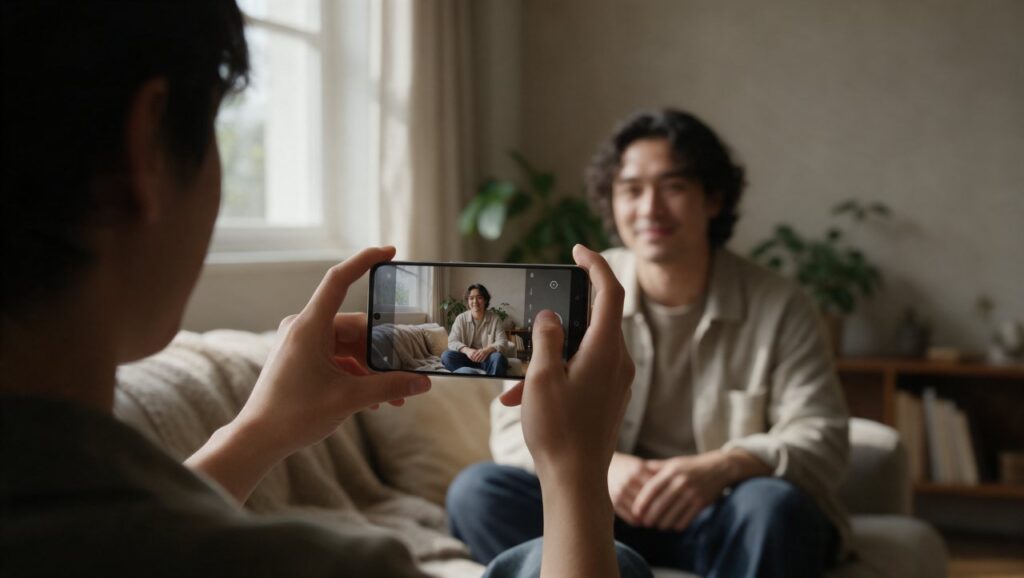
You pull up the photo you just took of your friend outside the coffee shop. The light was nice, they were laughing, and the moment felt right. But the picture looks flat, the background is sharper than their face, and the whole thing feels like a snapshot instead of a portrait. You know your phone can do better because you have seen other people post exactly the kind of image you wanted. The good news is that the gap usually comes down to a handful of habits, not a better camera.
Most modern phones are more capable than we give them credit for. The difference between a forgettable photo and one you want to print usually comes from where you stand, how you use the light, and what you do in the first thirty seconds of editing. This guide covers the practical steps that make portrait photos look intentional, even if you have never studied photography.
Start With the Background Before You Raise the Phone
A portrait is only partly about the person. The background does a lot of the work, and phone users often ignore it until after the shot is taken. Before you even frame your subject, scan the space behind them. Look for things that pull attention away from the face: bright signs, parked cars, trash bins, or a tree branch that looks like it is growing out of someone’s head.
A simple trick is to move your feet instead of asking the person to move. If you step two feet to the left, that telephone pole may slide out of the frame. If you crouch slightly, you can replace a messy street with a clean wall or a patch of sky. You do not need a blank studio background. You need a background that does not fight the subject.
Compare two common situations. One person stands against a busy storefront with red sale signs and reflections everywhere. Another person stands against a plain brick wall with soft afternoon light. The second photo almost always looks better, even with the same phone and the same pose, because the face becomes the brightest and most detailed part of the image.
When you cannot find a clean background, use distance. Put more space between the person and the background. Then use your phone’s portrait mode or a slight zoom to compress the scene. The background becomes softer and less distracting. This works especially well outdoors where trees, fences, or city lights turn into pleasing blurs instead of sharp clutter.
Find Light That Flatters Instead of Punishes
Light is the fastest way to improve a portrait. Harsh midday sun creates dark eye sockets and shiny foreheads. A cloudy sky or open shade gives you soft, even light that is much easier to work with. If you are outside on a sunny day, look for the edge of a shadow: under a tree, beside a building, or just inside a doorway. You want the person’s face in the shade but with daylight still reaching them from the open side.
A common mistake is standing with the sun directly behind the subject and expecting the phone to fix it. Some phones handle this well, but many produce a washed-out background or a muddy face. If you want that backlit look, tap on the face to set exposure, then gently brighten the image in editing. But for a reliable starting point, keep the light coming from the side or slightly in front of the person.
Window light indoors is your best friend. Have the person stand about an arm’s length from a window, turned slightly toward it. The side of their face closest to the window gets soft light, while the far side falls into shadow. This creates depth without needing any extra gear. Compare that to standing directly under a ceiling light, which often makes people look tired and flat.
You can also use a simple white wall or a sheet of paper as a reflector. Hold it opposite the window and angle it toward the shadow side of the face. It brightens the dark side just enough to keep detail without removing the natural shape of the face. This costs nothing and works with any phone.
Choose the Right Lens and Distance
The main camera on your phone is usually the best choice for portraits, but the wide lens can distort faces if you stand too close. When you use the ultra-wide lens, noses look larger, faces look stretched, and the background becomes too busy. The main lens, often labeled 1x, gives a more natural look. If your phone has a telephoto option, like 2x or 3x, that is even better for headshots because it compresses the scene and keeps facial proportions flattering.
Distance matters more than most people realize. Standing farther away and zooming in slightly produces a more natural face than standing close with the wide lens. Try this test: take a portrait from about two feet away with the 1x lens, then step back to six or seven feet and use 2x zoom. The second shot usually looks more like the person does in real life.
Portrait mode can help, but it is not always the right tool. It works best when there is clear separation between the person and the background. If the person is standing against a busy background with lots of small gaps, like leaves or a fence, the fake blur can look messy around the hair and ears. Take a normal photo first, then try portrait mode. You can always soften the background later with an editing app if you want that look.
When you do use portrait mode, watch the edges of the subject. Hair, glasses, and hands often confuse the depth effect. Keep the subject’s outline simple and avoid objects crossing in front of them. A clean shoulder line and a clear head shape give the software the best chance to separate the person from the background cleanly.
Set Focus and Exposure the Right Way
Your phone tries to guess what you want in focus, and it usually picks the closest large object. In a portrait, that often works, but not always. If you are shooting through leaves or past a railing, the phone may focus on the wrong thing. Tap directly on the person’s face, specifically on the eye closest to the camera. This locks focus where it matters most.
After tapping, you will usually see a small sun icon next to the focus box. Slide it up or down to adjust exposure. The goal is to keep the face bright enough to see detail but not so bright that the skin looks washed out. On many phones, a slight downward adjustment makes colors look richer and prevents bright spots from blowing out.
A common mistake is leaving exposure on automatic and shooting a dark-skinned subject against a bright window. The phone may brighten the whole scene and lose the face in shadow, or it may darken everything and lose the background. Tap the face, then raise exposure until the skin looks natural. You can recover some shadow detail later, but it is always better to get it close in the camera.
Lock focus and exposure by pressing and holding on the face. This prevents the phone from refocusing if the person moves slightly or if something passes behind them. It is especially useful when you are taking several shots in the same spot. Once locked, you can move the phone a little to adjust framing without losing the settings.
Direct the Person Without Making It Awkward
Most people freeze when you point a phone at them. They stand stiff, smile too hard, or put their hands in awkward places. Your job is to give them something simple to do. Instead of saying “act natural,” give a small instruction: “Put your weight on your back foot,” “Turn your shoulder toward me a little,” or “Look at the window, then back at me.” These small shifts change the shape of the body and make the photo feel less like a driver’s license picture.
Hands are a common problem. If the person does not know what to do with their hands, the photo looks uncomfortable. Suggest a simple action like holding a coffee cup, adjusting a sleeve, or putting one hand in a pocket with the thumb out. These are natural positions that most people can hold without looking posed. Avoid having both arms hang straight down like a mannequin.
For the face, a forced smile often looks tight. Ask the person to exhale slowly, then shoot right after. Or tell them to look down and then look up at you on the count of three. The moment right after a small movement usually looks more relaxed than a held expression. If they laugh naturally, keep shooting. The best portrait is often the second or third frame after they stop trying.
Keep the session short. Ten minutes of good direction is better than an hour of awkward posing. If you feel the person getting tired or stiff, stop and show them a few of the good shots. That builds confidence and gives them a sense of what is working. Then do one more quick round with that energy.
Use Editing Apps to Finish the Photo
Editing is where a good portrait becomes a great one. You do not need a complicated workflow. Start with a simple editing app like Snapseed, which is free and available on both major phone platforms. It lets you adjust brightness, contrast, and white balance with simple swipe controls. The key is to make small changes, not to transform the photo into something else.
Begin with brightness and shadows. If the face is slightly dark, raise the shadows a little instead of brightening the whole image. This keeps the background from blowing out. Then adjust the highlights if the skin looks shiny. A small reduction in highlights can make a big difference on foreheads and cheeks. After that, look at white balance. If the photo looks too blue or too yellow, use the warmth slider until the skin looks natural.
For portraits, a subtle vignette can help focus attention on the person. But be careful. Too much vignette looks like a filter from 2012. A gentle darkening at the edges, just enough to notice, keeps the eye in the center of the frame. Snapseed and similar apps let you control the strength, so start low and pull back if it looks obvious.
If you want to retouch small blemishes, use the healing tool sparingly. Remove a stray hair across the face or a temporary spot, but do not smooth the skin so much that it looks plastic. The goal is to clean up distractions, not to change the person’s actual features. A portrait should still look like them on a good day.
Shoot in the Right Mode for the Situation
Most phones default to a standard photo mode that does a decent job in average light. But for portraits, it is worth switching modes depending on the scene. If your phone has a dedicated portrait mode, use it when you want background blur and the subject is clearly separated from the background. If the light is low, use night mode or a manual mode that lets you slow the shutter slightly. Keep the phone steady or rest it on a surface to avoid blur.
For moving subjects, like a child or a person walking, avoid portrait mode. The depth effect needs a relatively still subject. Instead, use the standard photo mode with a fast shutter if your phone allows manual control. If not, just shoot in good light and tap to focus right before the moment you want.
Some phones offer a high-resolution mode, often called ProRAW or a similar name depending on the brand. This gives you more room to edit later, especially for recovering highlights and shadows. It creates larger files, but for a portrait you really care about, it is worth the extra storage. Just remember to edit the file afterward, since these images often look flat straight out of the camera.
If you like a consistent look, consider using a camera app that lets you save custom settings. Apps like Adobe Lightroom for phones include a built-in camera with manual controls and the ability to apply a preset look later. You do not need to use every slider. Just having consistent white balance and exposure from shot to shot makes a series of portraits look cohesive.
Avoid These Common Portrait Mistakes
One of the most frequent mistakes is cropping at the joints. If you cut someone off at the knees, waist, or neck, the photo can feel uncomfortable even if people cannot explain why. A better rule is to crop between joints. For a headshot, crop above the elbows or mid-torso. For a three-quarter shot, crop above the knees. This keeps the frame from looking accidental.
Another mistake is relying too much on digital zoom. If you pinch to zoom past the phone’s optical zoom range, the image loses detail quickly. Once you go past your phone’s telephoto lens, zoom is essentially a crop, not a true lens change. The result looks soft and noisy. Instead, move closer or shoot wider and crop in editing. You will keep more detail and have more control over the final framing.
Watch the eyes. If the eyes are not in sharp focus, the whole portrait feels off. This is especially important when shooting at wide apertures in portrait mode, where the depth of field can be very shallow. Tap on the eye closest to the camera and take a test shot. Zoom in on the preview to check sharpness before taking more.
Finally, do not over-edit. It is tempting to push saturation, add a heavy filter, or smooth the skin until the person looks like a video game character. The best phone portraits look like a clean version of reality. If you find yourself moving sliders far from the middle, take a break and come back. Your eyes adjust to heavy edits quickly, and what looks stylish in the moment often looks dated later.
Build a Simple Portrait Workflow You Can Repeat
You do not need a new technique for every photo. A repeatable workflow makes good results more consistent. Start by picking a spot with clean light and a simple background. Then set your lens: main camera or slight telephoto, never ultra-wide for faces. Stand far enough away to avoid distortion, then tap on the eye to focus and adjust exposure until the skin looks right.
Before you shoot, give the person one small direction. Something like “turn your shoulder toward me” is enough. Take three or four frames, then check the sharpness on the eyes. If it looks good, try one variation: a different angle, a step to the side, or a change in hand position. Stop when you have two or three solid options, not a hundred similar frames.
When you edit, follow the same order every time. Fix exposure first, then white balance, then shadows and highlights. Remove small distractions with a healing tool if needed. Add a gentle vignette only if it helps the composition. Export at full quality and save the original file so you can revisit it later with fresh eyes.
Here is a quick checklist for your next portrait session:
- Background is clean or far enough away to blur
- Light hits the face from the side or slightly in front
- Main lens or telephoto, not ultra-wide
- Focus is locked on the eye closest to the camera
- Exposure is set for the skin, not the whole scene
- Person has a simple direction for body and hands
- Three to five frames taken, then checked for sharpness
- Editing order: exposure, white balance, shadows, highlights, cleanup
- Final crop avoids joints and keeps the eyes in the upper third





